💻 Data Statistics
📋 What is the Data Statistics Panel?
The Data Statistics panel is WiseMindAI's learning data analysis center for you. It's like a "learning dashboard" that helps you fully understand your learning situation: how many documents you've read, how many cards you've reviewed, how well you did on exams, how many notes you've written, and more.
Through intuitive charts and numbers, you can:
- 📊 Understand Learning Progress: Know how much you've learned and reviewed
- 📈 Discover Learning Patterns: See your learning rhythm through trend charts
- 🎯 Get Learning Suggestions: The system will provide improvement suggestions based on your data
- 💪 Motivate Continuous Learning: See your progress and stay motivated to keep going

🚀 How to Get Started?
- Open the WiseMindAI application
- Find the "Data Statistics" tab in the left navigation bar
- Click to enter and you'll see your learning data

📚 Five Major Statistics Features Explained
1. Learning Statistics: Understand Your Knowledge Input
This feature helps you understand:
- How many documents have you imported?
- How many documents have been summarized by AI?
- Which documents do you read most often?
- What's your learning rhythm?
Main Data Cards
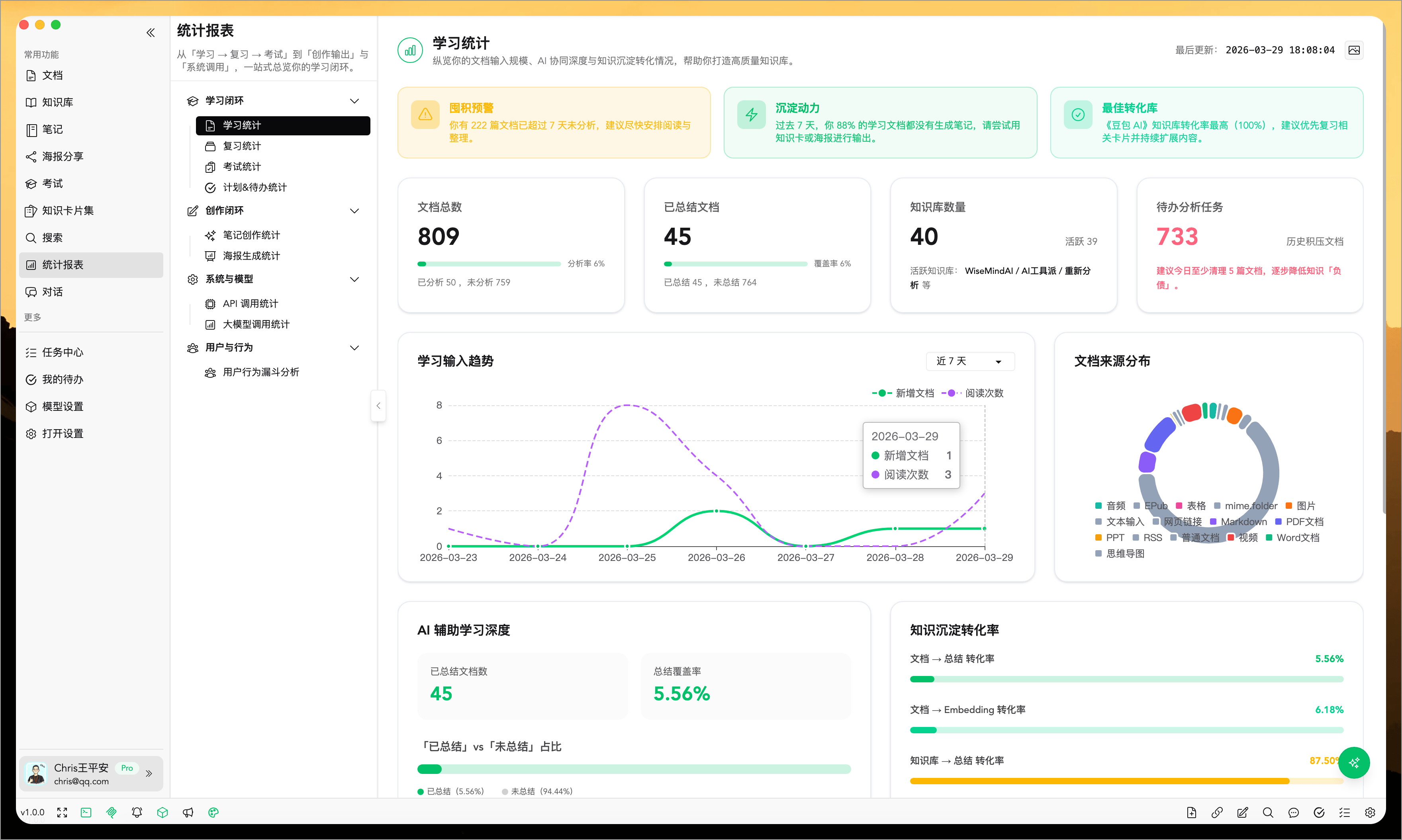
After entering the "Learning Statistics" page, you'll see several important number cards:

Total Documents: Shows how many documents you've imported in total
Summarized Documents: Shows how many documents have been summarized by AI. The higher this number, the deeper your understanding of the documents.
Number of Knowledge Bases: Shows how many knowledge bases you've created
Pending Analysis Tasks: Shows how many documents haven't been processed yet. If this number is large, the system will remind you to process them as soon as possible.
AI Smart Analysis
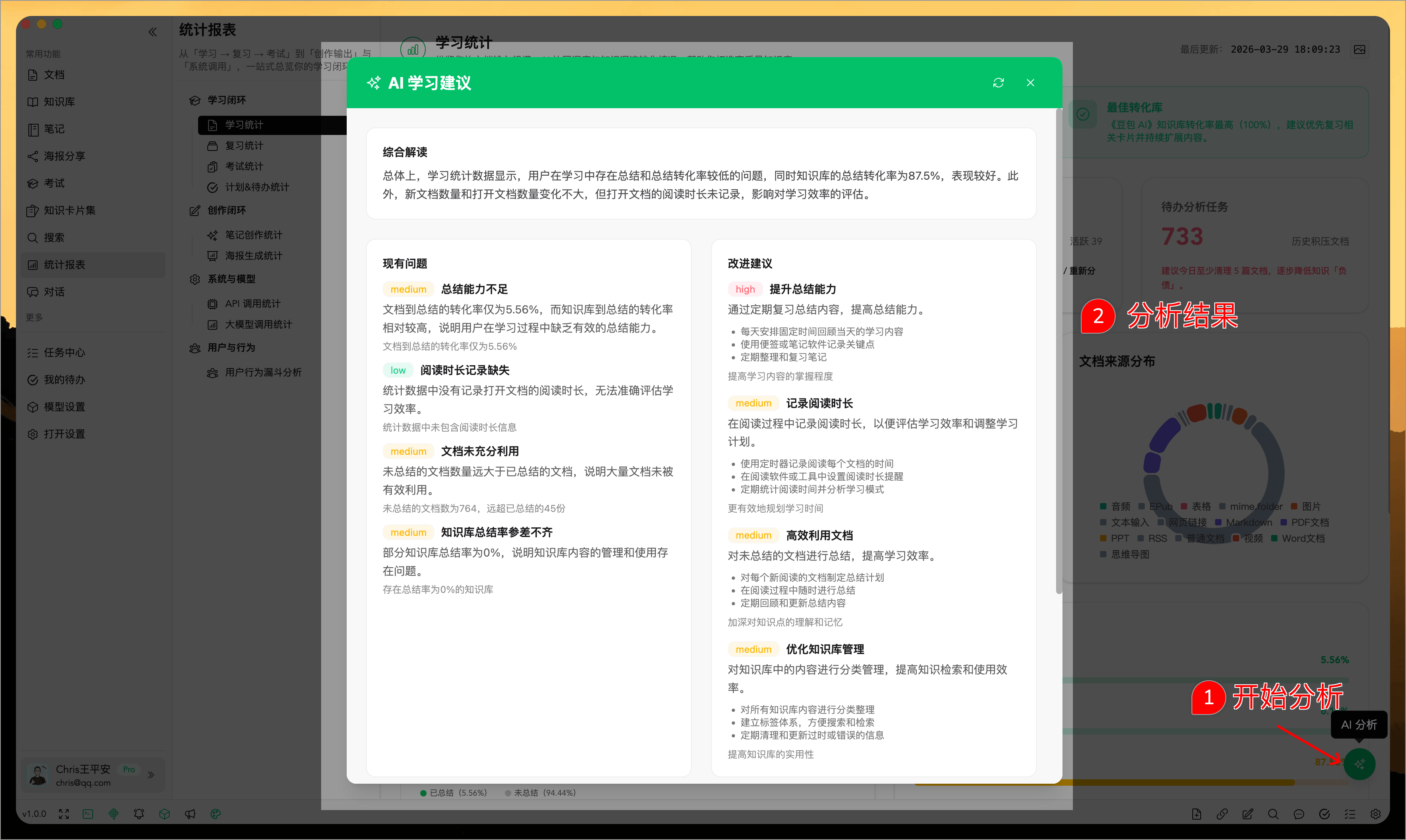
Click the "AI Analysis" button in the bottom right corner of the page, and WiseMindAI will give you some reminders based on your data:
- ✅ Good Learning Status: All documents maintain a good learning rhythm
- ⚠️ Hoarding Warning: Some documents haven't been opened for more than 7 days, it's recommended to read them soon
- 💡 Accumulation Suggestion: Reminds you to try using knowledge cards or posters to output your learning results

Data Charts
Learning Input Trend Chart: Uses a line chart to show how many new documents you added each day and how many times you read them. You can switch to view data for the last 7, 15, or 30 days.
Document Source Distribution: Uses a pie chart to show where your documents come from (file upload, web links, RSS, etc.).
Most Frequently Accessed Documents Top 5: Shows the 5 documents you've read most recently, click to jump directly to view them.
Knowledge Base Document Statistics Top 5: Shows the 5 knowledge bases you've used most recently, click to jump directly to view them.
2. Review Statistics: Track Your Memory Status
This feature helps you understand:
- How many cards did you review today?
- How many cards did you review this week?
- Which cards are always hard to remember?
- Is your review rhythm stable?
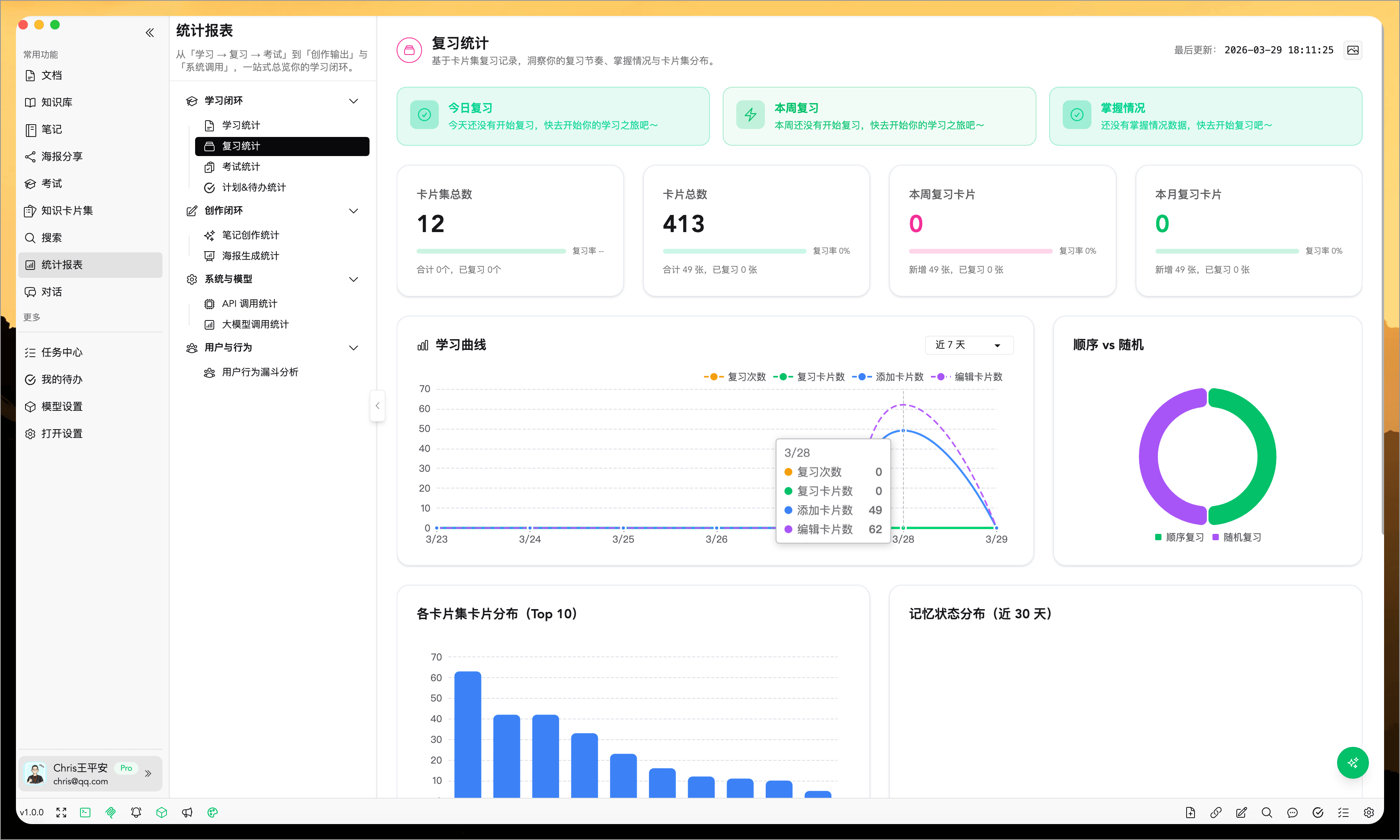
Main Data Cards for Review Statistics

Today's Review: Shows how many cards you reviewed today. If you haven't started yet, the system will encourage you to start learning.
This Week's Review: Shows how many cards you reviewed in total this week.
Total Card Sets: Shows how many card sets you've created.
Total Cards: Shows how many cards you have in total.
Mastery Status Analysis
The system will analyze your review situation in the last 30 days and tell you:
- Remember Rate: How many cards you marked as "remembered"
- Vague Rate: How many cards you marked as "vague"
- Forget Rate: How many cards you marked as "forgotten"
Learning Curve Chart
Uses a line chart to show your daily review situation, including:
- How many cards you reviewed
- How many new cards you added
- How many cards you edited
You can switch to view data for the past 3 days, 7 days, 15 days, or 30 days.
High-Frequency Forgotten Cards
The system will list the 10 cards you forget most easily. Click to jump directly to the corresponding card for focused review.
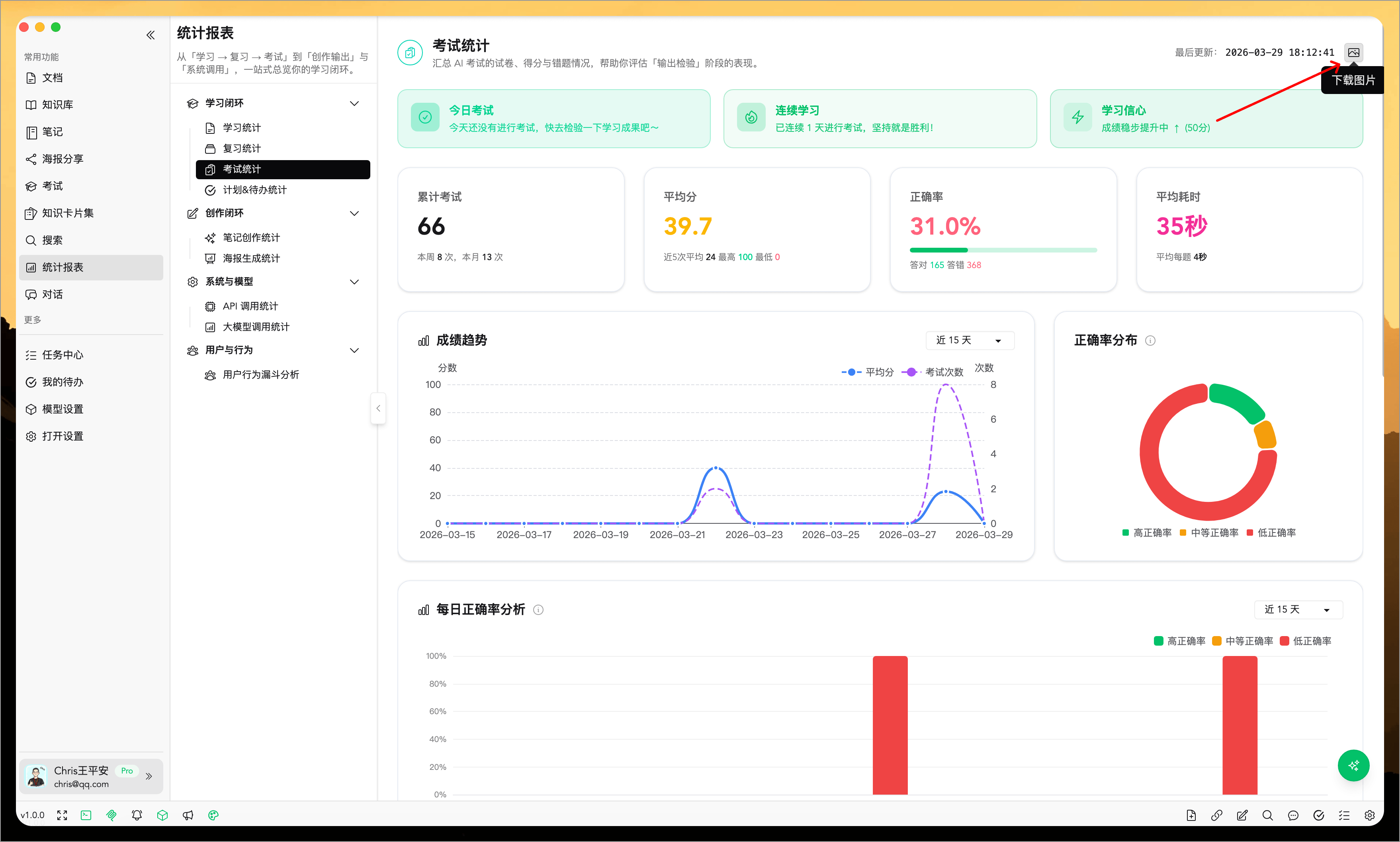
3. Exam Statistics: Test Your Learning Effectiveness
This feature helps you understand:
- How many exams have you taken?
- What's your average score?
- What's your correct rate?
- Which knowledge points are not well mastered?
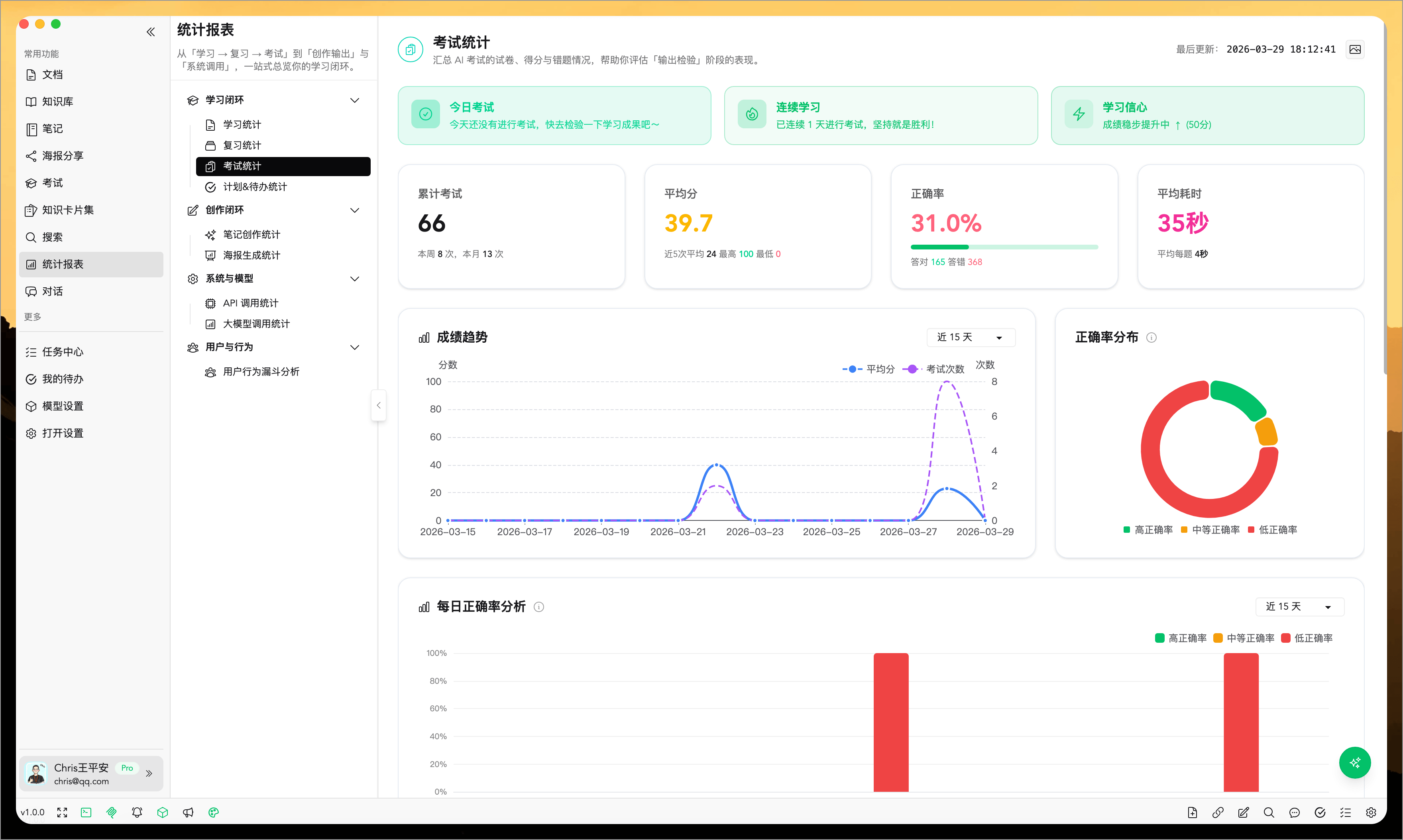
Main Data Cards for Exam Statistics

Cumulative Exams: Shows how many exams you've completed in total.
Average Score: Shows the average score of all exams, and also displays the highest and lowest scores.
Correct Rate: Shows the proportion of questions you answered correctly out of the total questions.
Average Time Spent: Shows the average time spent on each exam.
Learning Confidence Assessment
The system will give you an assessment based on your exam scores:
- ✅ Stable Knowledge Mastery: Stable scores indicate good mastery
- 📈 Steady Improvement: Recent scores are getting better, keep it up
- ⚠️ Unstable Knowledge Mastery: Large score fluctuations, need to strengthen review
- ❓ Insufficient Data: Too few exam records to accurately assess
Score Trend Chart
Uses a line chart to show your score change trends, you can see:
- Daily average score changes
- Daily number of exams
High-Frequency Error Sources
The system will list the knowledge sources (knowledge card sets, documents, or knowledge bases) where you make the most mistakes, helping you find weak areas.
4. Note Creation Statistics: Track Your Knowledge Output
This feature helps you understand:
- How many notes have you written?
- What's the average word count per note?
- Where do your notes come from?
- Which notes do you read most often?
Main Data Cards for Note Creation Statistics

Cumulative Notes: Shows how many notes you've created in total.
This Week / Last 30 Days: Shows the number of notes created recently.
Average Word Count: Shows the average word count of all notes.
Favorite Notes: Shows how many notes you've favorited.
Popular Tags: Shows your 5 most frequently used tags.
Creation Trend Chart
Uses a line chart to show your creation situation, including:
- How many new notes you added each day
- How many notes you edited each day
- Average word count changes
Note Source Distribution
Uses a pie chart to show where your notes come from:
- Manually created
- From document summaries
- From knowledge bases
- Other sources
High-Frequency Access Notes
Shows the 5 notes you read most often. Click to jump directly to view them.
5. Poster Generation Statistics: Understand Your Content Creation
This feature helps you understand:
- How many posters have you generated?
- When was the last time you generated one?
- What's your creation frequency?
Main Data Cards for Poster Generation Statistics

Cumulative Posters: Shows how many posters you've generated in total.
Today's Generation: Shows how many posters you generated today.
This Week's Generation: Shows how many posters you generated this week.
Last Generation Time: Shows when you last generated a poster.
Generation Trend Chart
Uses a line chart to show how many posters you generated each day. You can switch to view data for the last 7, 15, or 30 days.
📤 How to Export Statistics Data?
All statistics pages support exporting as images, making it easy for you to save and share.
Export Steps
- Enter any statistics page
- Find the export button in the upper right corner
- Click the button and select save location
- The system will automatically generate a complete screenshot containing all charts and data

Permission Description
Regarding export function permissions:
- Pro Users: Can fully use the export function
- Free Users: Export function is limited, need to upgrade to Pro version
💡 Practical Usage Scenarios
Scenario 1: Weekly Review of Learning Progress
Steps:
- Open the "Learning Statistics" page
- View the "Learning Input Trend Chart" to understand this week's learning activity
- Check the "Summarized Documents" count to see how many documents have been deeply studied
- Pay attention to "Hoarding Warning" reminders and process unread documents in time
Benefits:
- Understand this week's learning volume
- Discover areas that need improvement
- Maintain learning rhythm
Scenario 2: Optimize Review Plan
Steps:
- Open the "Review Statistics" page
- View the "Learning Curve Chart" to understand review rhythm
- Check "Mastery Status Distribution" to see remember rate, vague rate, and forget rate
- View "High-Frequency Forgotten Cards Top 10" and focus on reviewing these cards
Benefits:
- Discover review patterns
- Find weak areas
- Create a more targeted review plan
Scenario 3: Test Learning Effectiveness
Steps:
- Open the "Exam Statistics" page
- View the "Score Trend Chart" to understand score changes
- Check the "Learning Confidence" assessment to understand knowledge mastery
- View "High-Frequency Error Sources" and strengthen review accordingly
Benefits:
- Understand learning effectiveness
- Discover knowledge weak points
- Adjust learning strategies
Scenario 4: Track Creative Output
Steps:
- Open the "Note Creation Statistics" page
- View the "Creation Trend Chart" to understand creation activity
- Check "Note Source Distribution" to understand note source composition
- Open "Poster Generation Statistics" to view content output frequency
Benefits:
- Understand knowledge output situation
- Motivate continuous creation
- Build creation habits
❓ Frequently Asked Questions
Q: How often is the data updated?
A: Statistics data is calculated in real-time. Every time you open the page, it will automatically update. When you switch time periods (7 days/15 days/30 days), the data will also automatically refresh.
Q: Why are some data 0?
A: It might be because:
- You haven't used the related features yet (e.g., haven't created notes, haven't taken exams, etc.)
- There's no related activity in the selected time range
- Data is still loading, please wait a moment
Q: Can I export to PDF?
A: Currently, exporting to image format is supported. PDF export function is under development, please stay tuned.
Q: What features can free users use?
A: Free users can view all statistics data, but the export function requires upgrading to Pro version.
Q: How long is the data saved?
A: Statistics data will be saved permanently. As long as your documents, notes, cards, and other data exist, the statistics data will always be there.
🎯 Usage Tips
Regular Review
It's recommended to view statistics weekly or monthly to understand your learning progress and trend changes.
Focus on Trends
Don't just look at single-day data, focus on data trend changes. For example, how many more cards you reviewed this week than last week, how many more notes you wrote this month than last month.
Combine Suggestions
The system will give you some suggestions based on your data, such as "Some documents haven't been opened for more than 7 days." You can schedule time to process these documents.
Export and Save
Regularly export statistics data to build your own learning archive. This way you can see your long-term progress.
Don't Over-Focus
Statistics data is just a tool. Don't study just to "boost data." What really matters is learning effectiveness, not the numbers themselves.