
📒 Cross-Platform Note Publishing
WiseMindAI provides two ways to use notes across platforms:
- Direct copy: Copy a note to WeChat Official Accounts, Zhihu, or another Markdown editor without configuring a third-party API.
- Integration publishing: Configure a third-party platform, then publish notes directly to Flomo, Notion, SiYuan, Feishu, and other services.
Copy directly to WeChat Official Accounts, Zhihu, or Markdown
Open a note, switch to Reading Mode, and select Copy to Platform at the bottom.
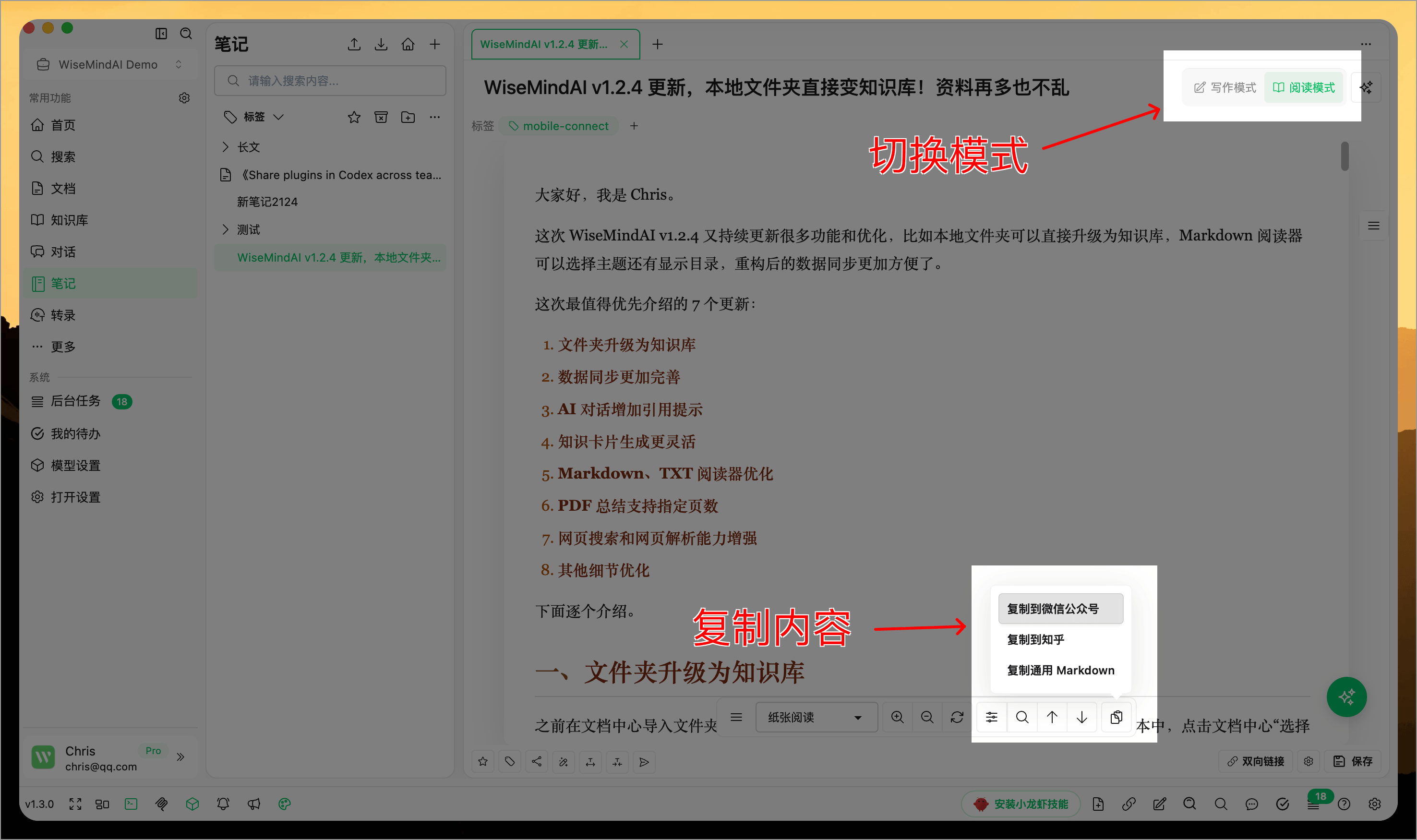
Copy to WeChat Official Accounts
Copy and paste the title and body separately:
- Select Copy to WeChat Official Account.
- Select Copy Title and paste it into the title field.
- Select Copy Body and paste it into the article editor.
The body preserves major elements from the current reading theme whenever possible, including heading levels, fonts, colors, quotes, lists, tables, and code. Browser and editor behavior may vary, so check the final result before publishing.
Copy to Zhihu
After selecting Copy to Zhihu, you can also copy the title and body separately. This version prioritizes a clear article structure and compatible formatting, making it suitable for turning a long note into a Zhihu answer or article.
Copy general Markdown
Select Copy General Markdown to copy the note body to another Markdown editor, code repository, or Markdown-compatible content platform.
Local images and complex content
If a note contains images that are only available on your computer, WiseMindAI warns that they cannot be transferred directly to an external platform. You can ignore local images and copy the remaining content, or upload them to an accessible URL first.
Online images are preserved whenever possible, but the destination platform may upload or process them again. Formulas, diagrams, and complex tables are converted for compatibility; check them individually after pasting.
Publish to third-party platforms through integrations
The following sections explain how to configure cross-platform publishing. After setup, select a publishing platform below the note editor:
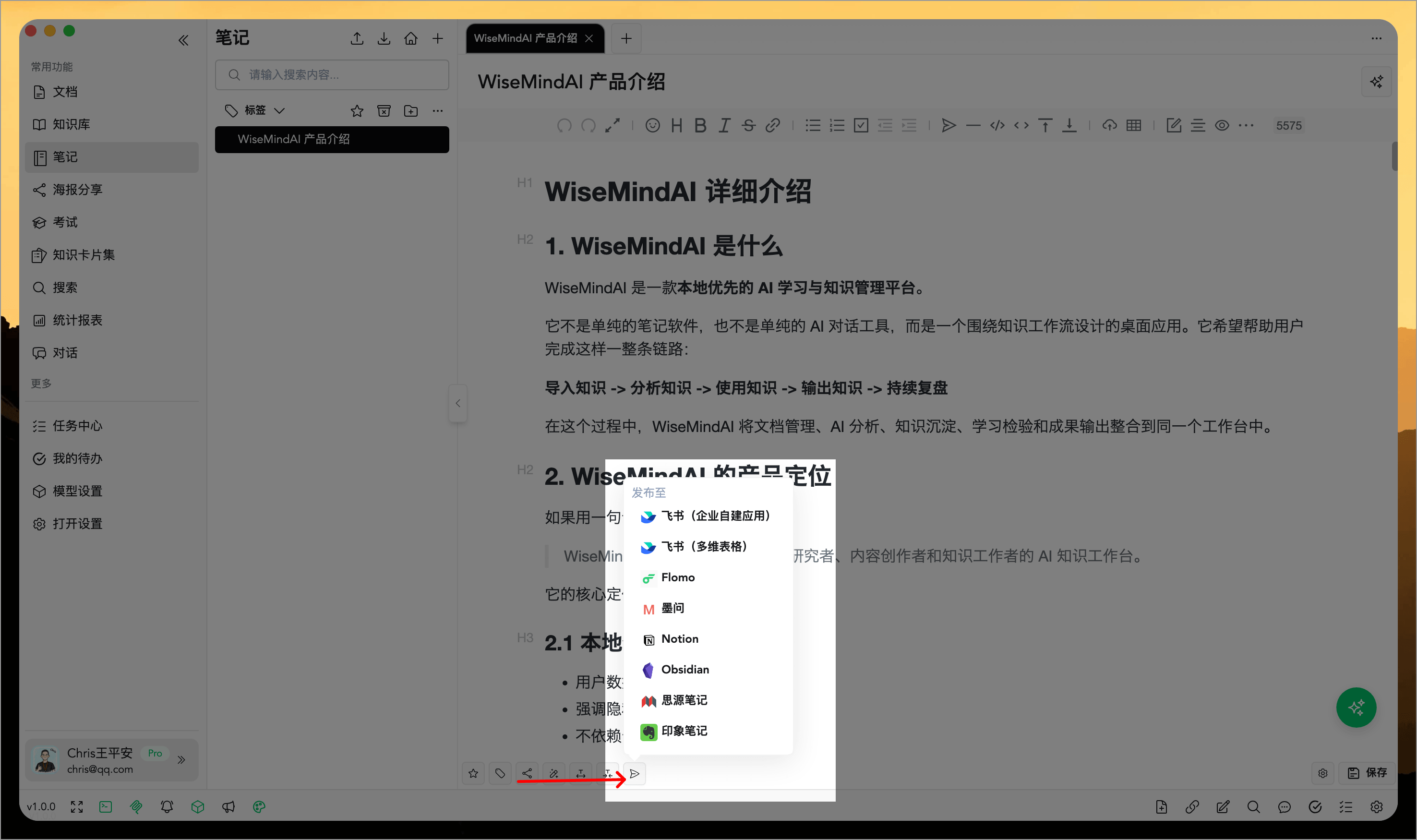
You can configure settings according to the platforms you wish to publish notes to:
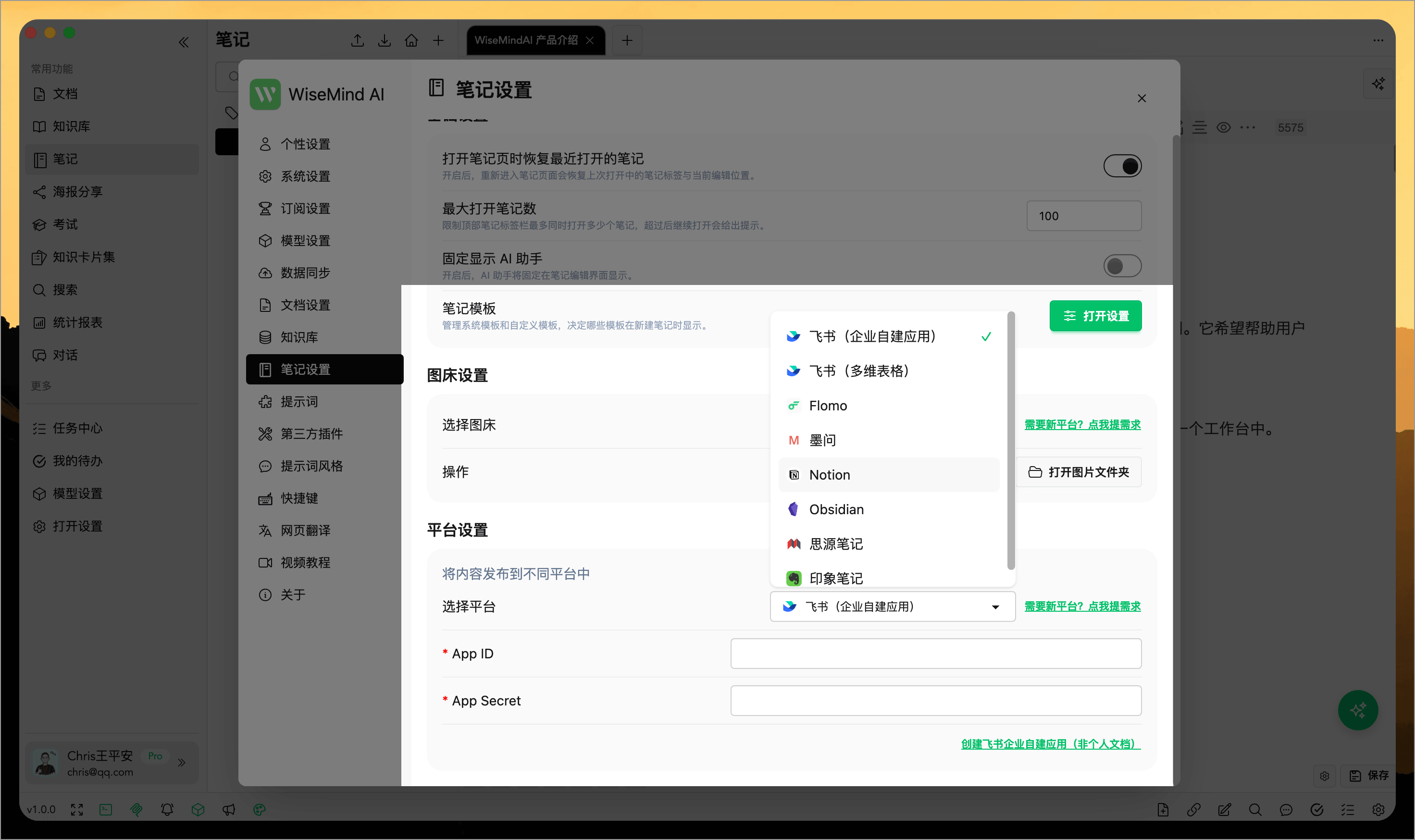
If you need support for other platforms, please submit a request via 《WiseMindAI Note Content Sync Platforms》.
1. Flomo
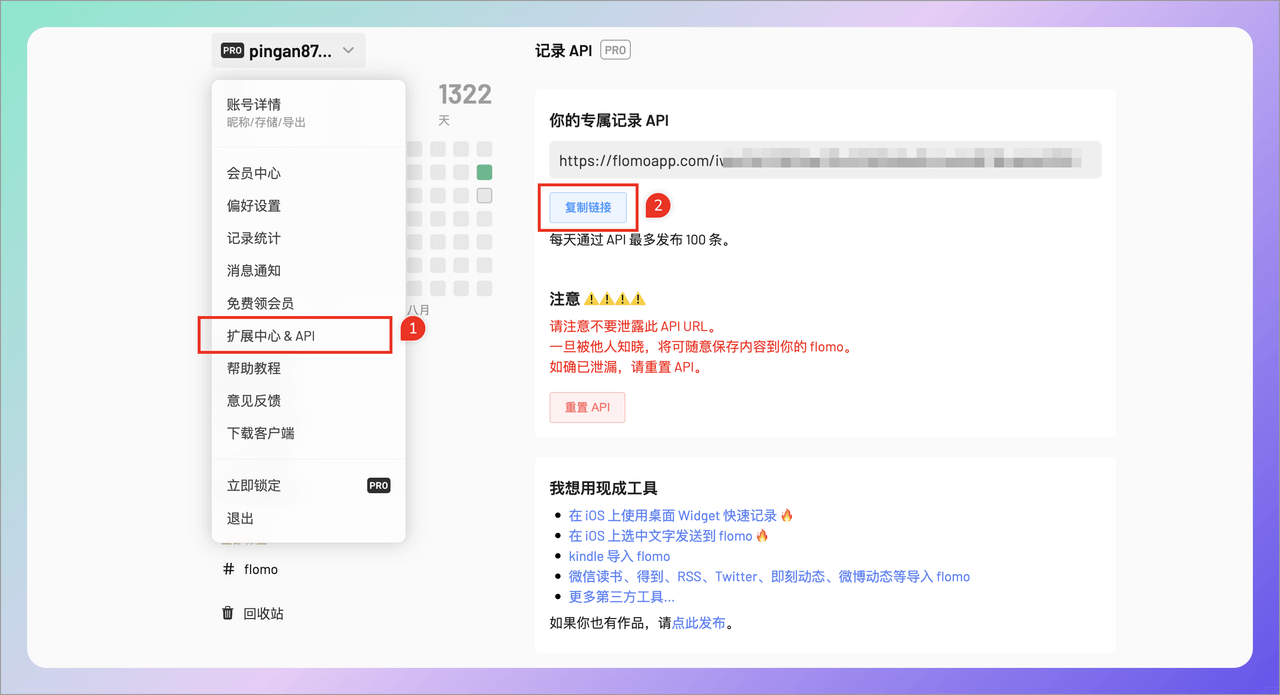
- Open the official Flomo website and select "Extension Center & AIP" from the top-left menu.
- Copy your exclusive Record API key.
- Note: This feature requires a Pro membership.
2. Notion
2.1 Create New Page and Database
First, create a new page and database in Notion for synchronization purposes.
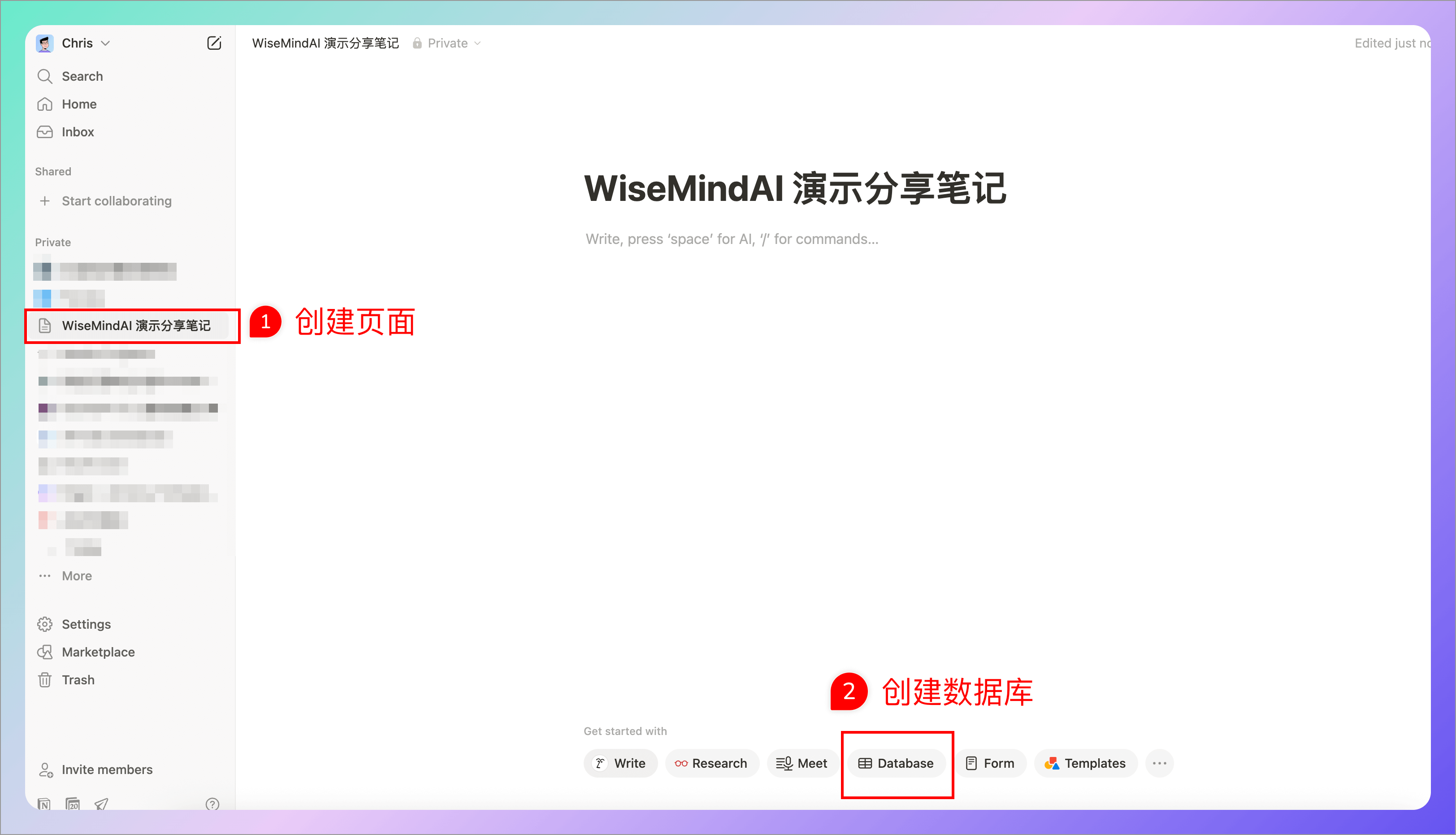
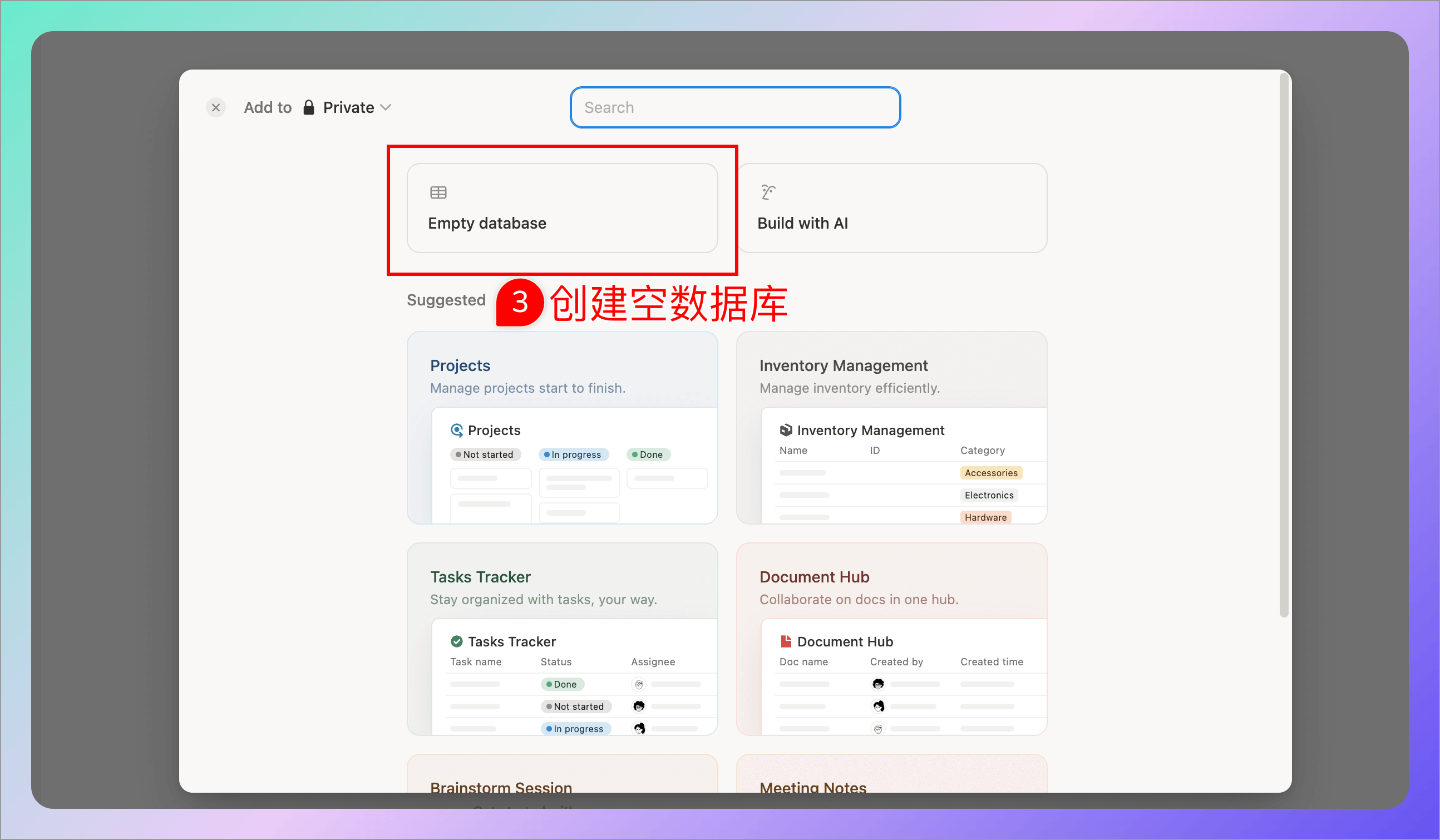
2.2 Generate Integration Token
- Open the Notion Integrations page
- Create a new integration
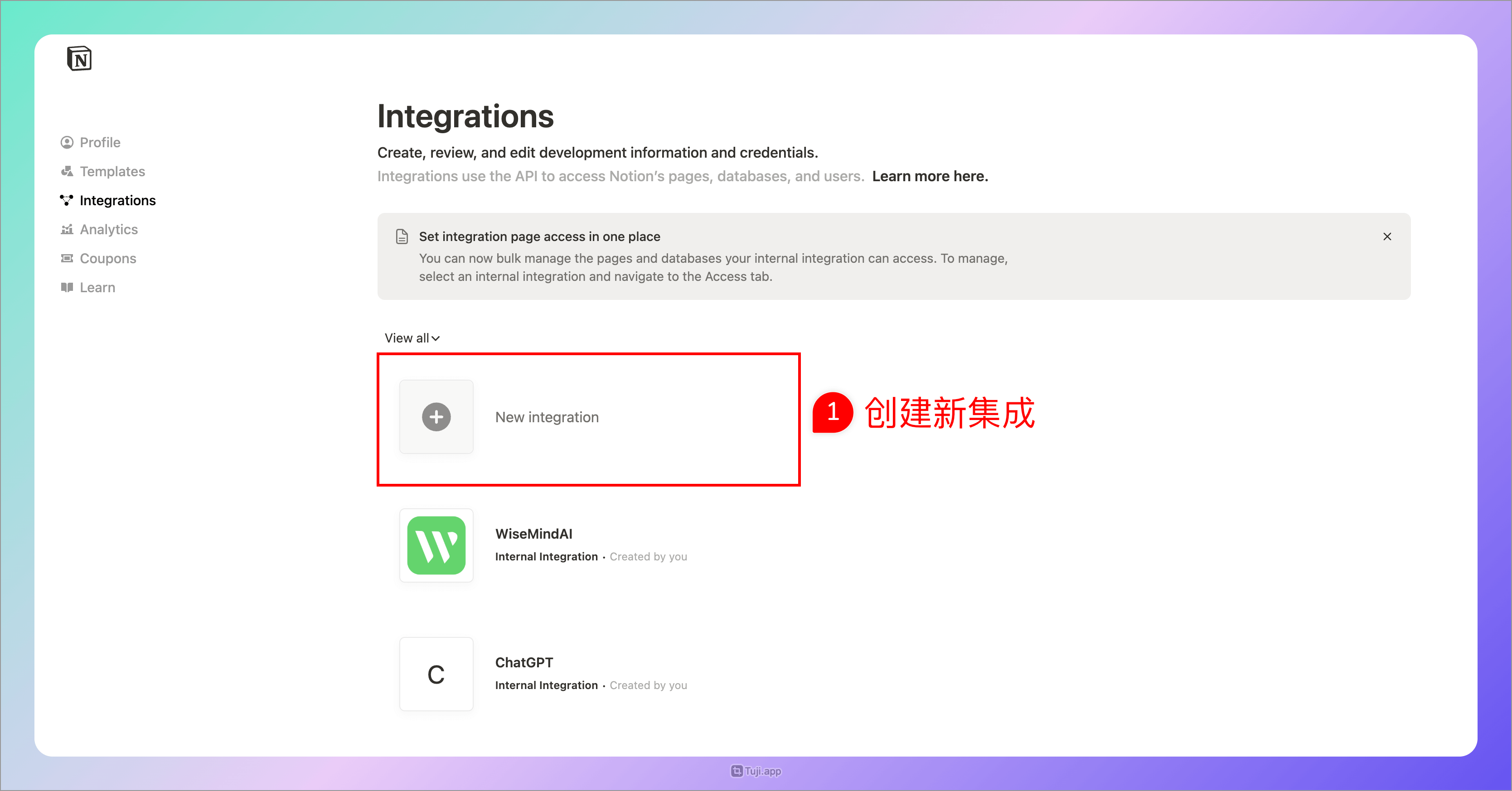
- Fill in the integration details:
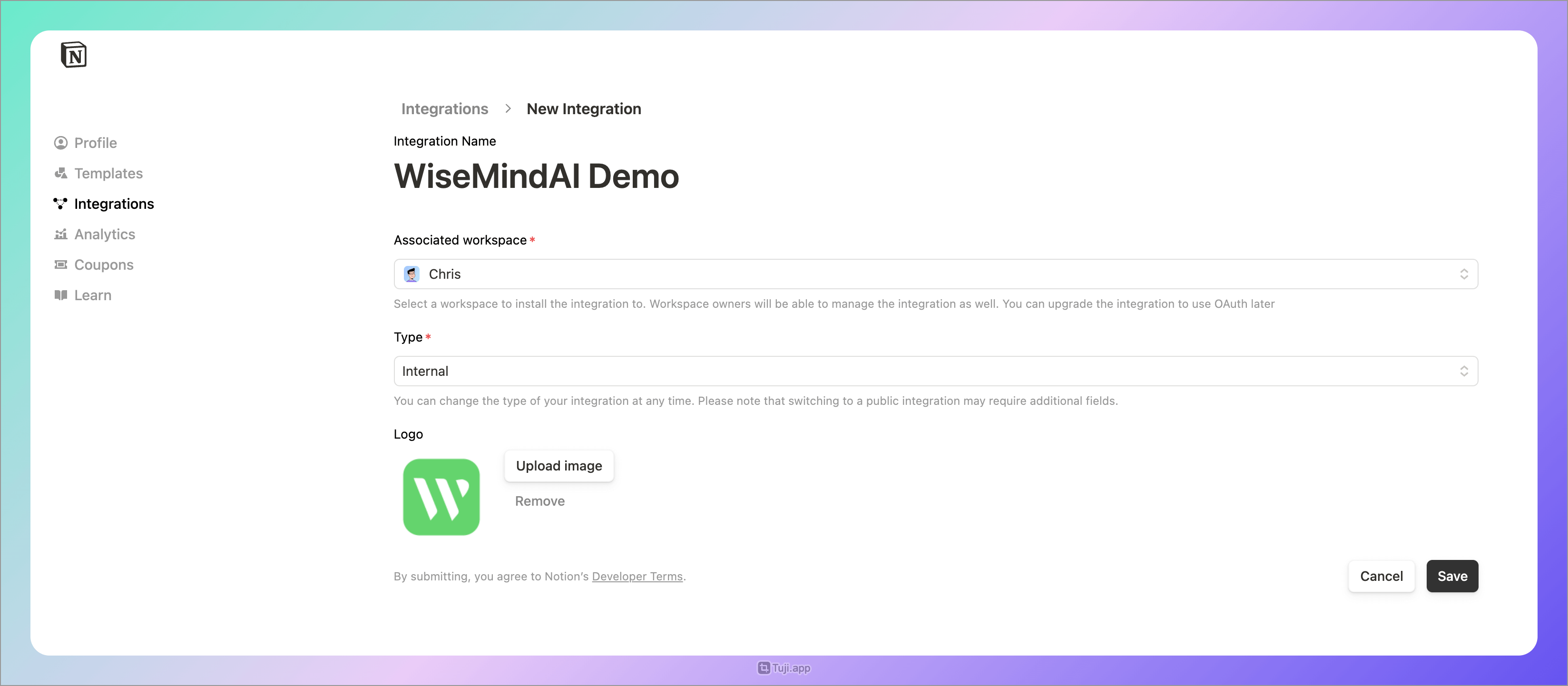
- Set the Integration Access Content and select the page created earlier:
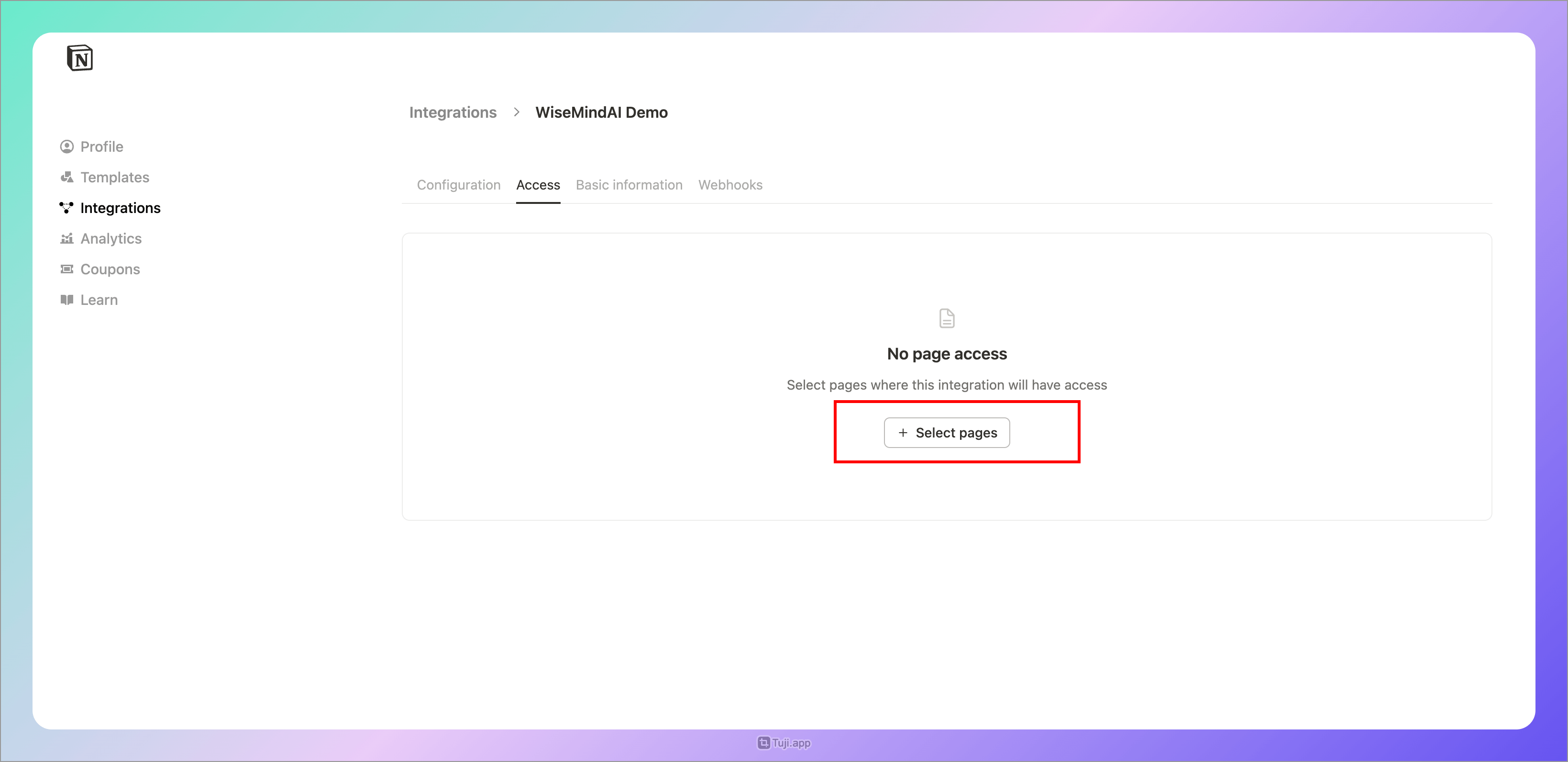
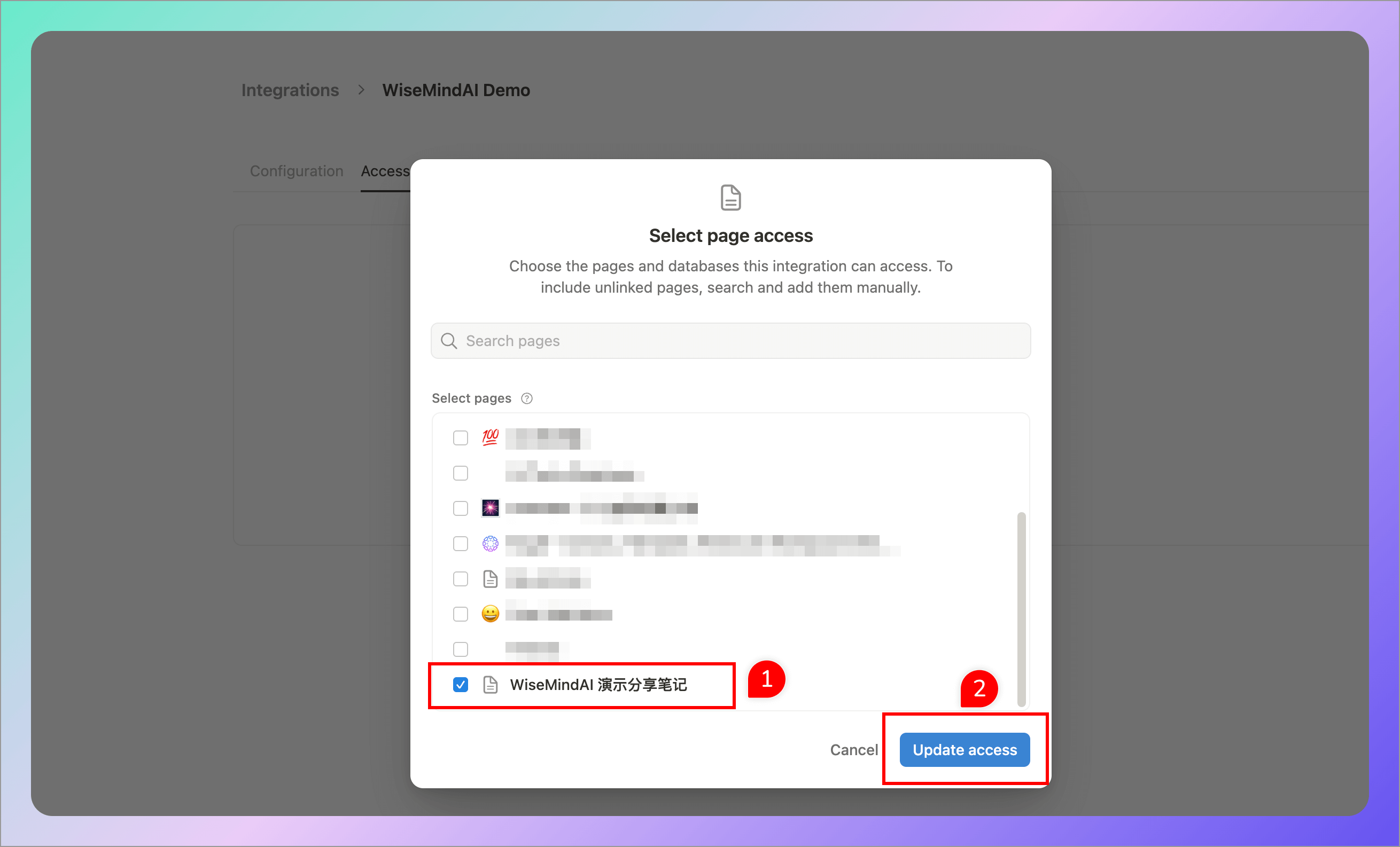
- Copy the Integration Token and paste it into WiseMindAI:
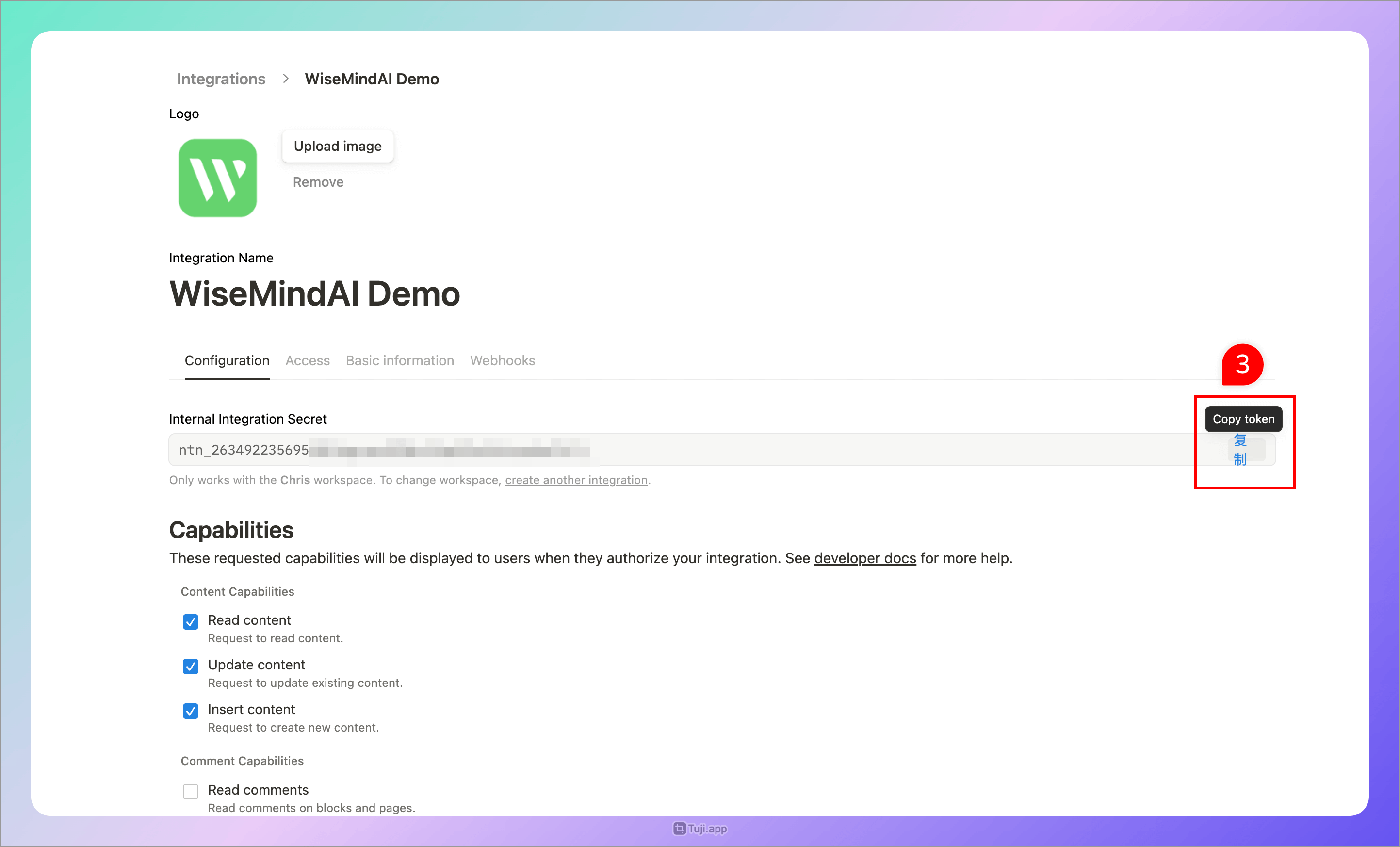
2.3 Copy Database ID
- Open your Notion database page
- Click the share button in the top-right corner and select "Copy Link"
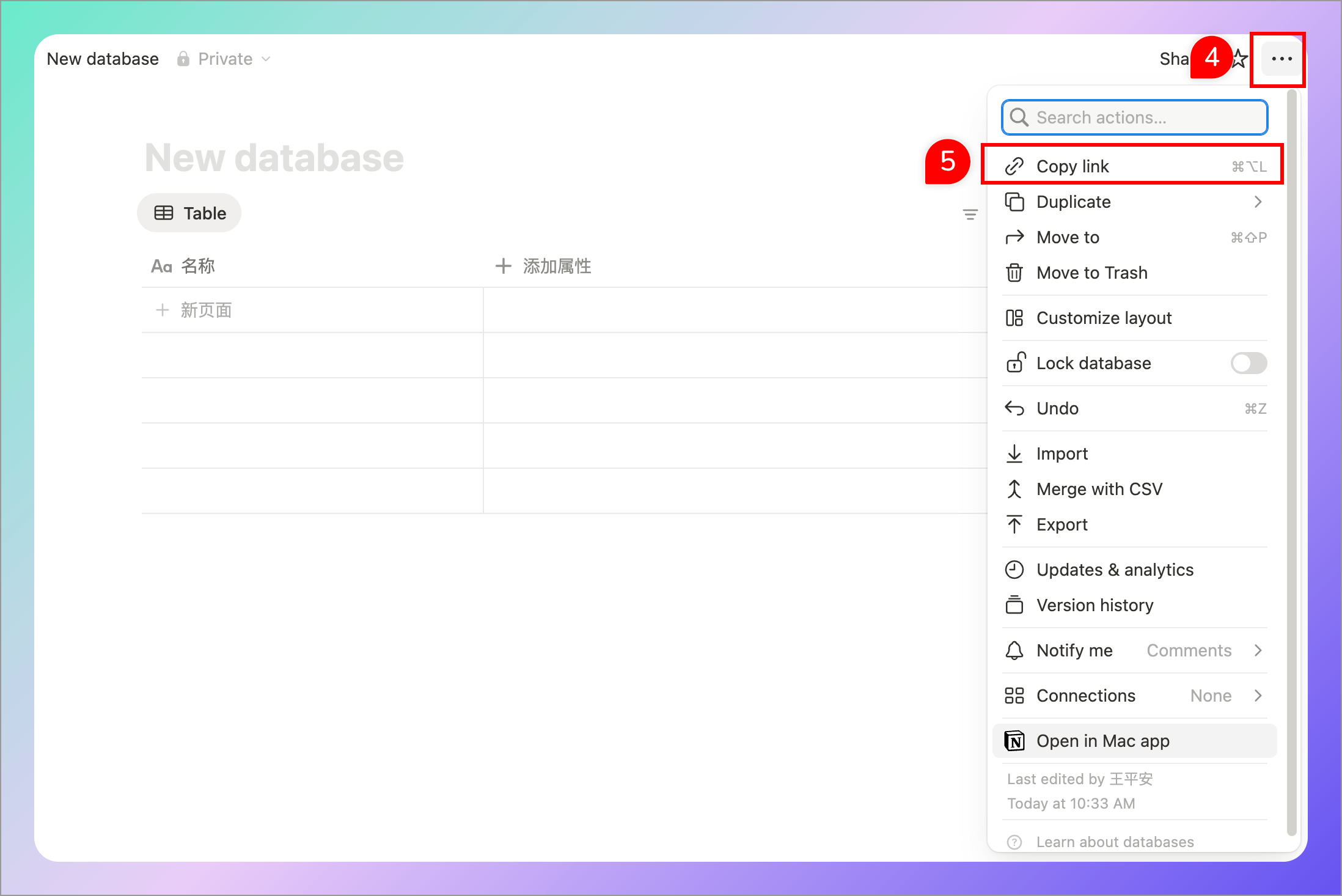
- Extract the Database ID from the link (the part before
v=) - Paste the Database ID into WiseMindAI's "Database ID" field:
Example: https://www.notion.so/chris1993/?v=255622893e91809d8060000cf359ce00 The Database ID is the text in red within the link.
3. Obsidian Notes (SiYuan)
- Open SiYuan/Obsidian settings and find "API token" under the "About" menu:
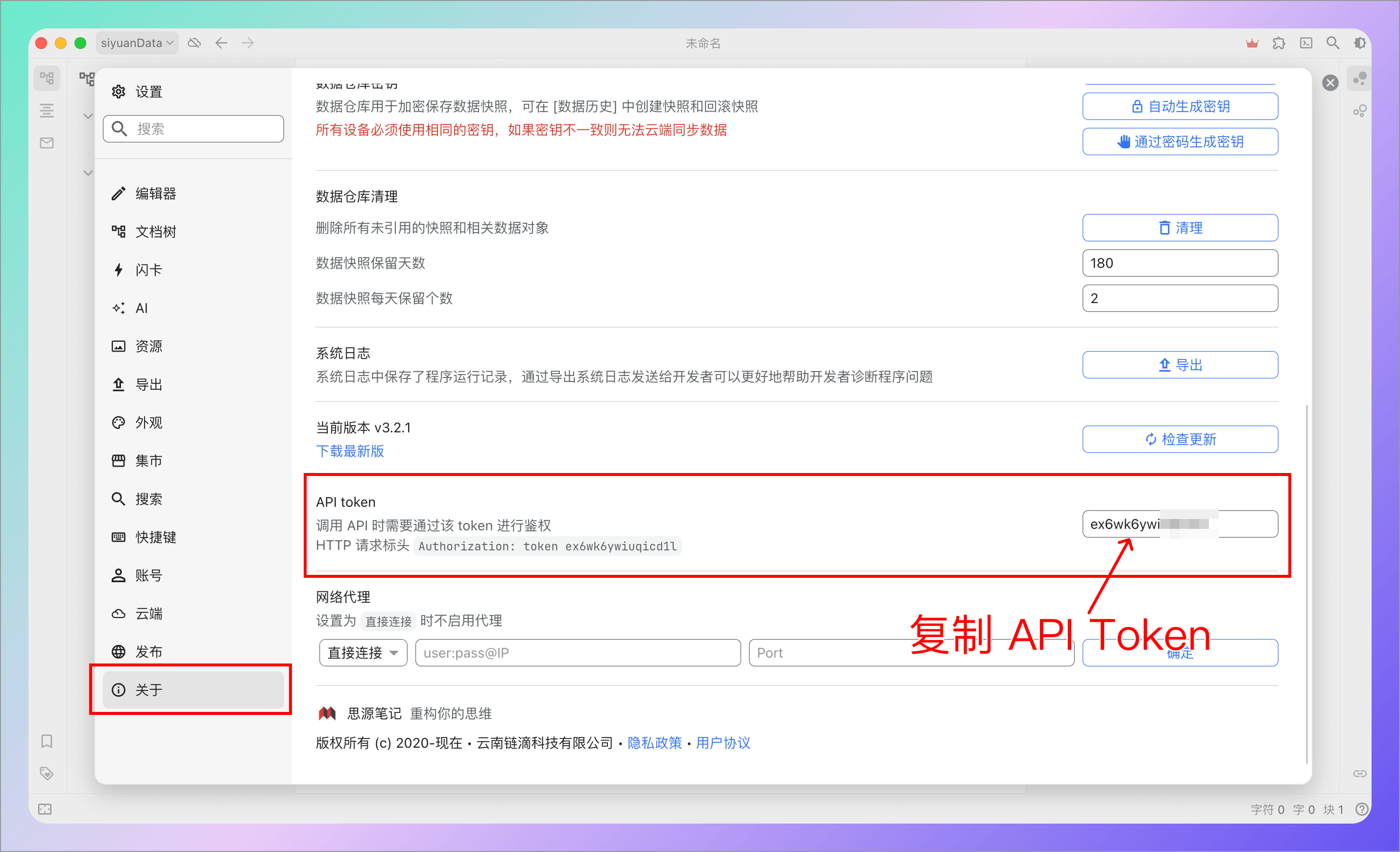
- Copy the API Token on the right side and paste it into WiseMindAI settings
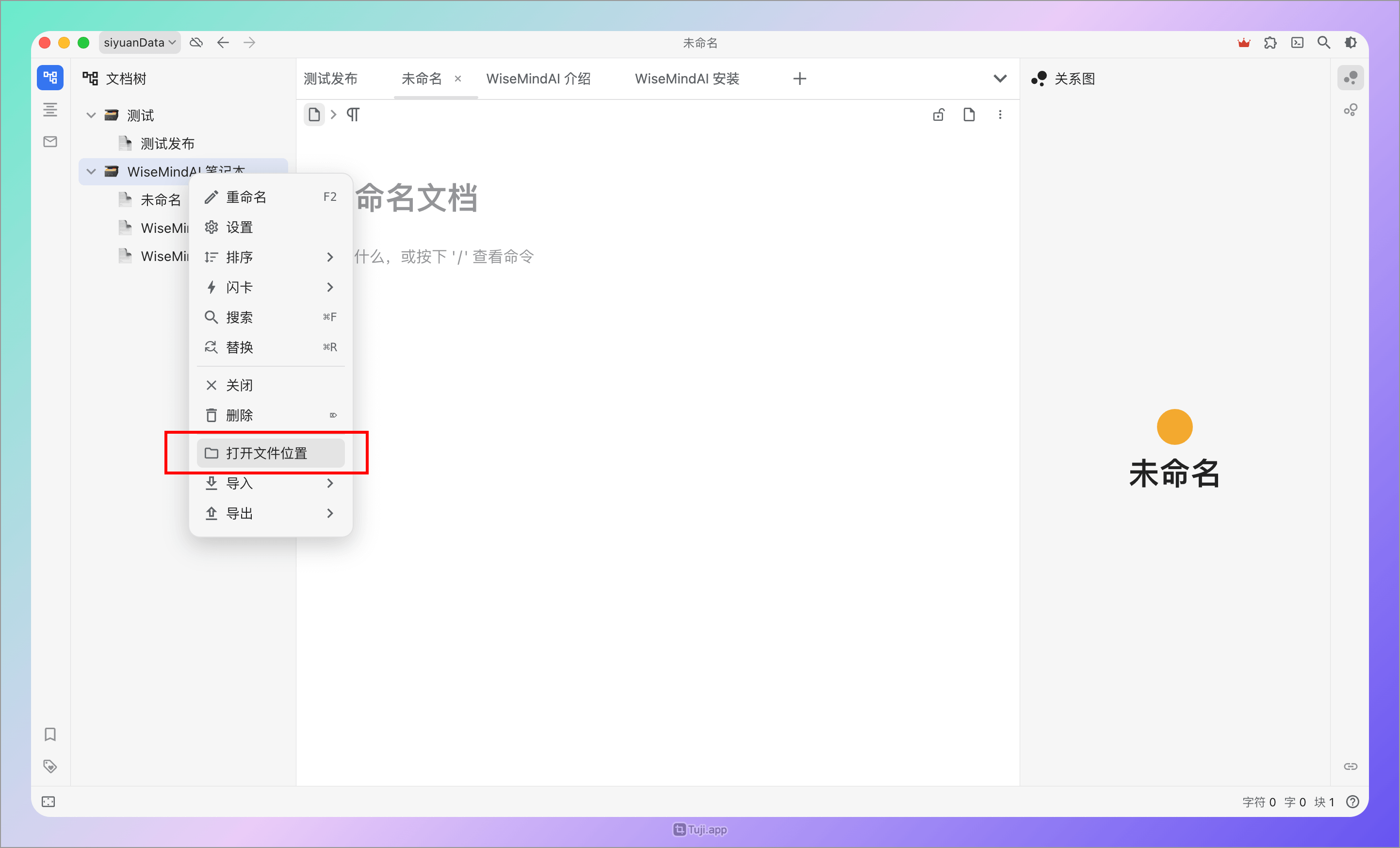
- Copy your Notebook ID:
Right-click a target notebook in SiYuan/Obsidian list and select "Open Folder Directory":
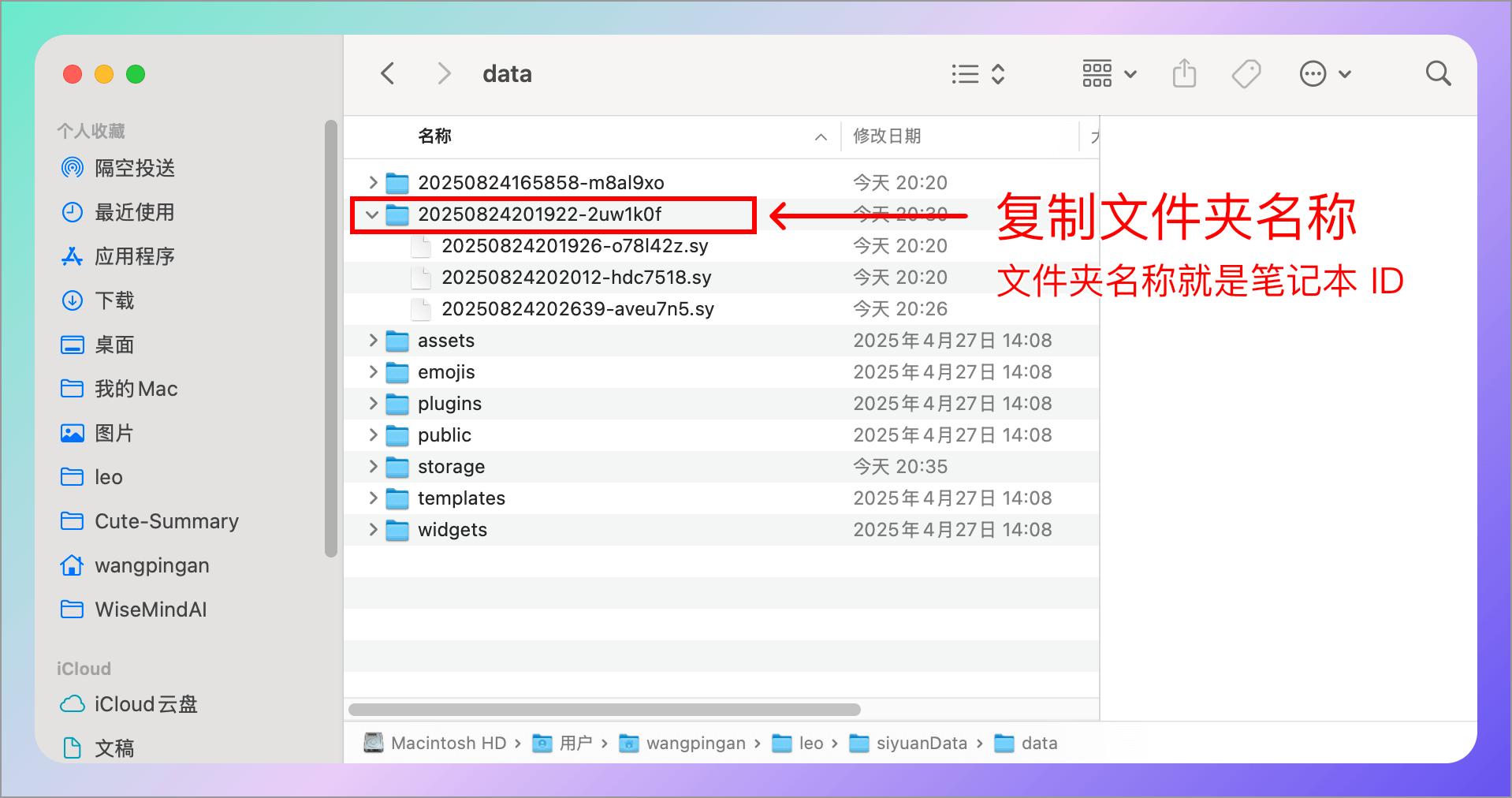
- Copy the folder name (which is your Notebook ID) and paste it into WiseMindAI:
4. Feishu (Enterprise Self-Built App)
Due to the complexity of authorizing personal knowledge base documents, WiseMindAI currently does not support them. We first support publishing via "Enterprise Self-Built Apps", allowing you to publish documents under your enterprise self-built app.
Required parameters:
- App ID
- App Secret
4.1 Create an Application
- Go to the Feishu Open Platform and create a new application:
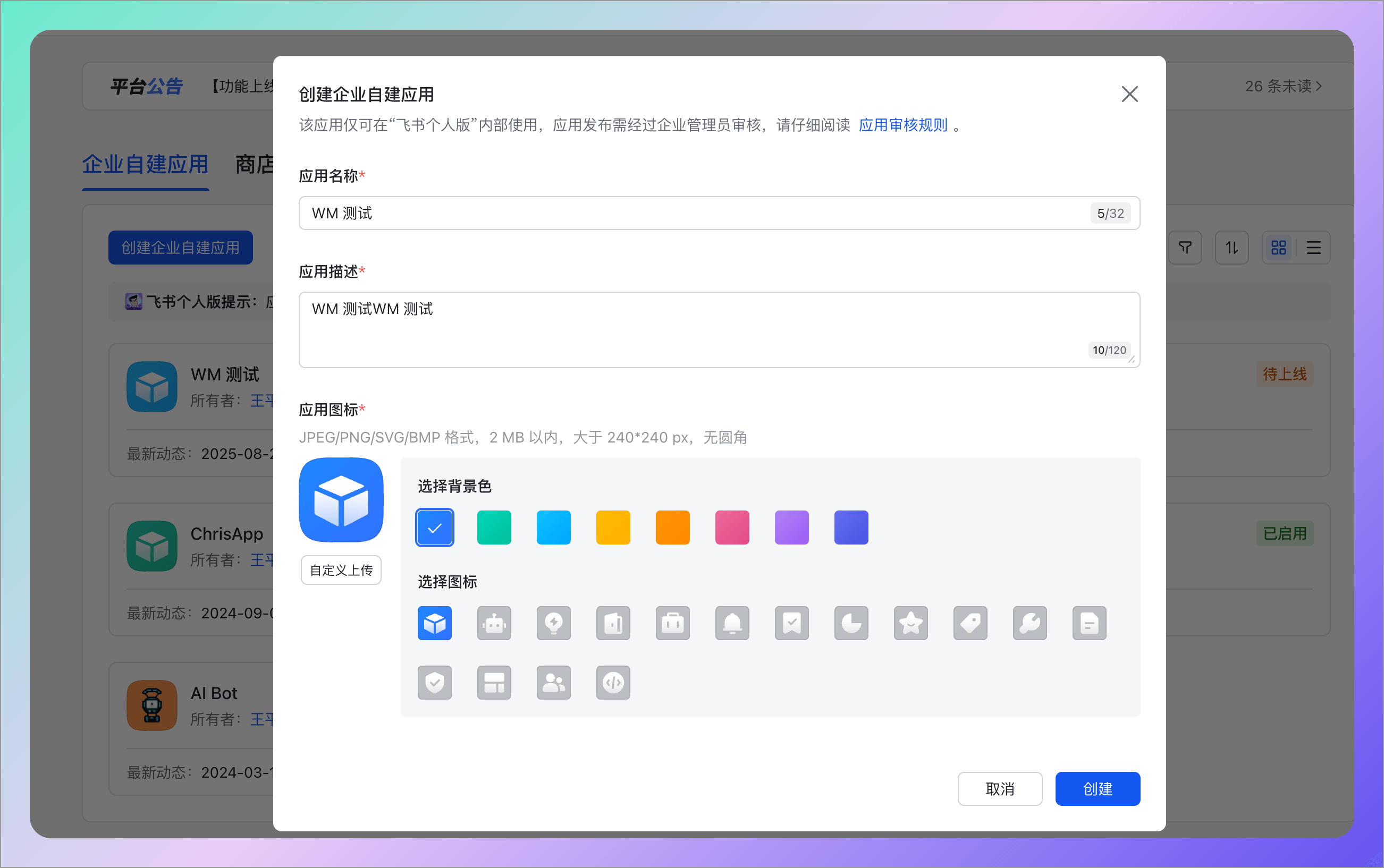
- Copy the App ID and App Secret.
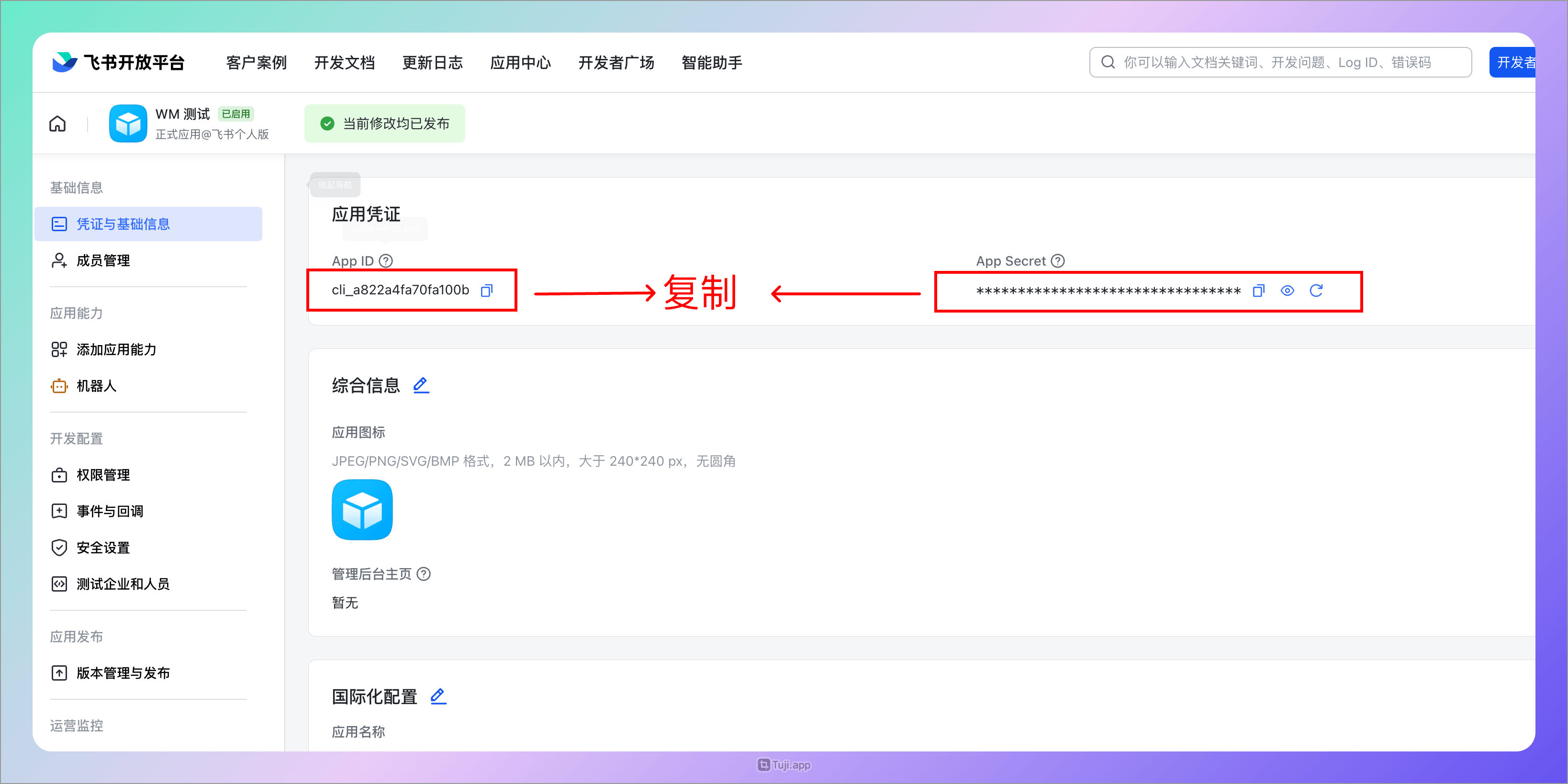
- Paste them into WiseMindAI.
4.2 Configure Permissions
Configure the following permissions in your Feishu application:
- Create and edit new documents
docx:document - Convert text content to cloud document blocks
docx:document.block:convert
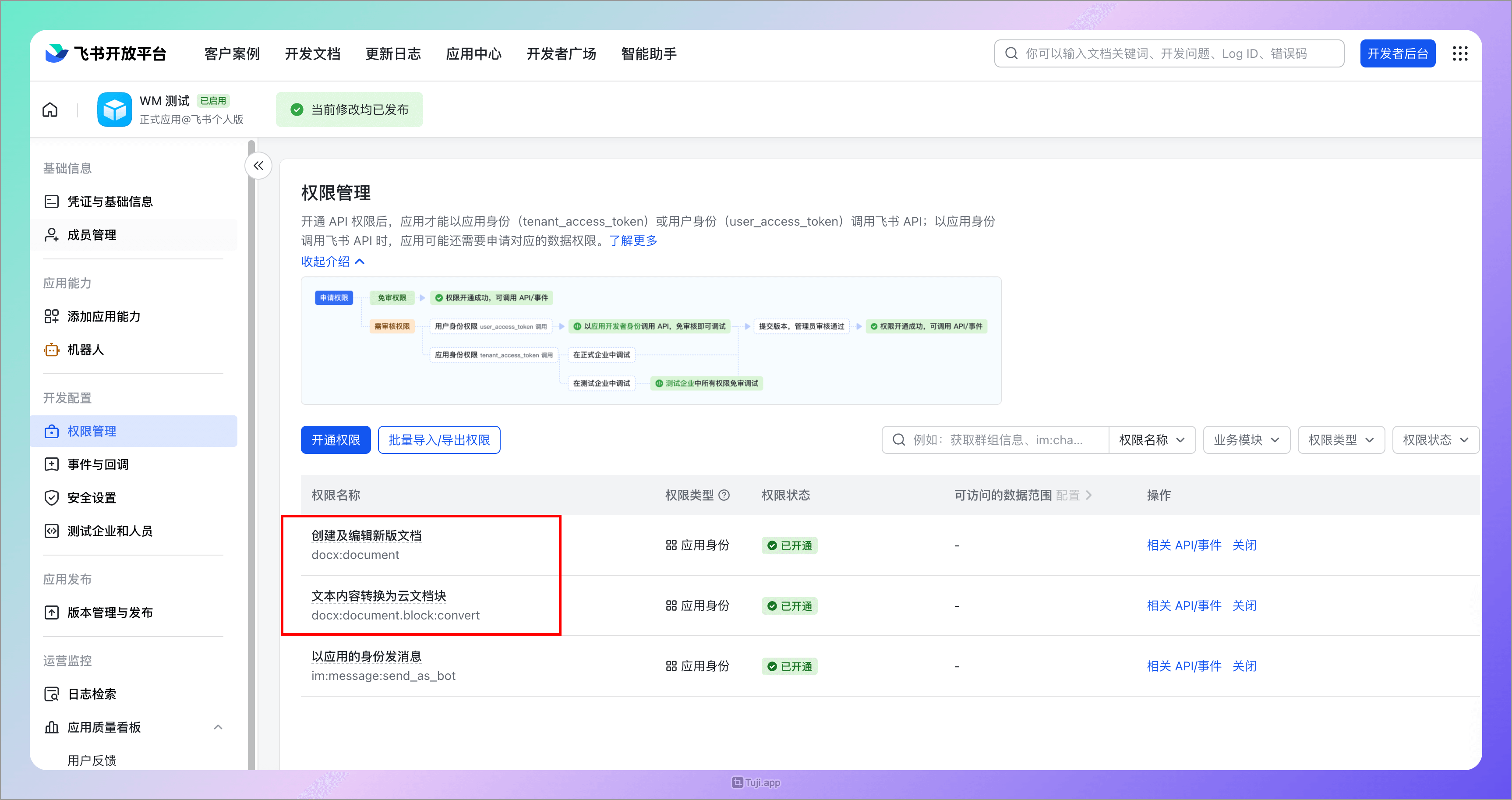
Don't forget to publish the application after configuration.
5. Feishu (Multi-dimensional Tables)
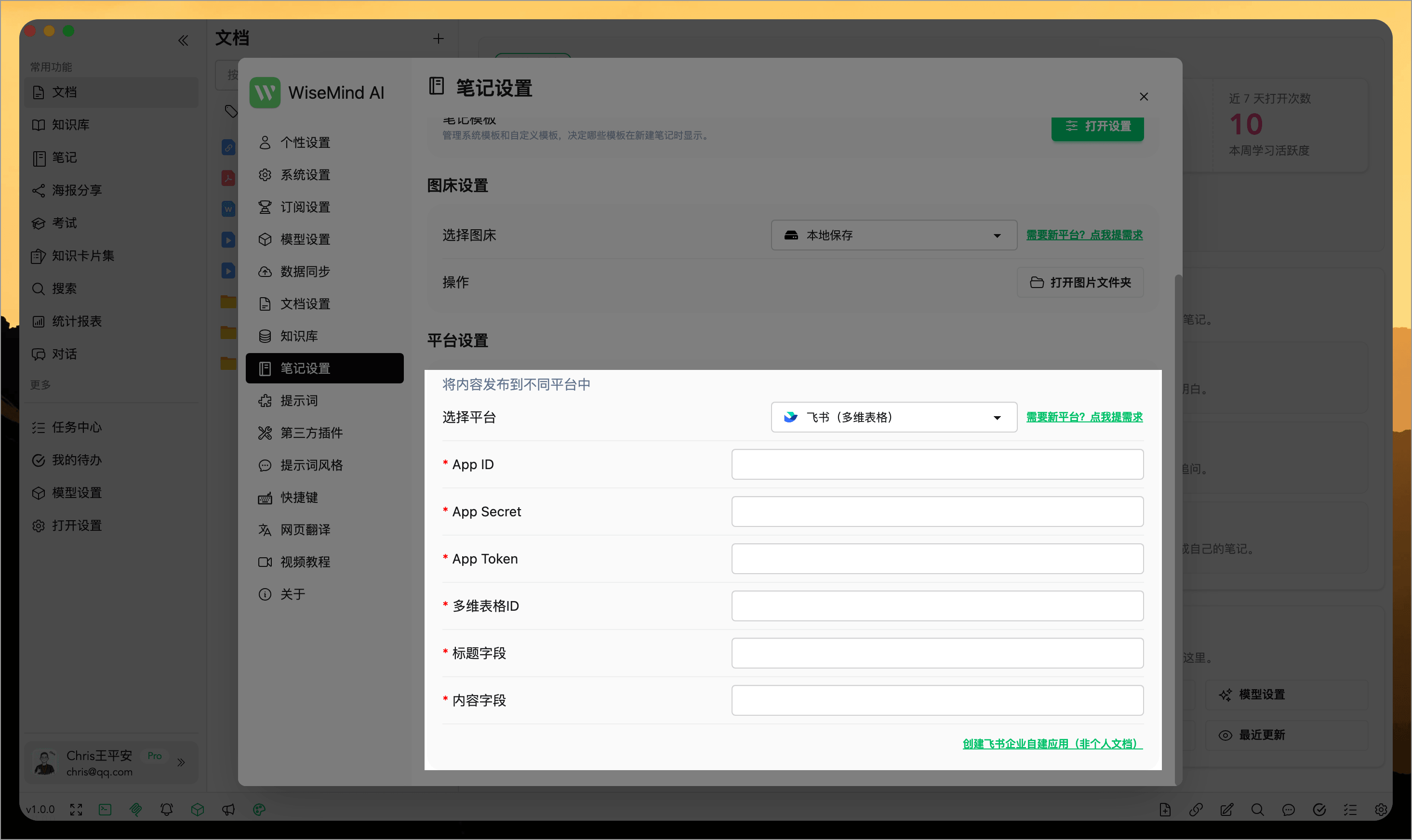
Since setting up a personal knowledge base document in Feishu requires authorization and other complex steps, there is currently no good solution for this within WiseMindAI; therefore, we first support adding data via applications to multi-dimensional tables. Adding new records to the table is done by applying as an application role. Required parameters:
- App ID
- App Secret
- App Token
- Multi-dimensional Table ID
- Title field name
- Content field name
5.1 Create Application
First, go to https://open.feishu.cn/app to create an application:
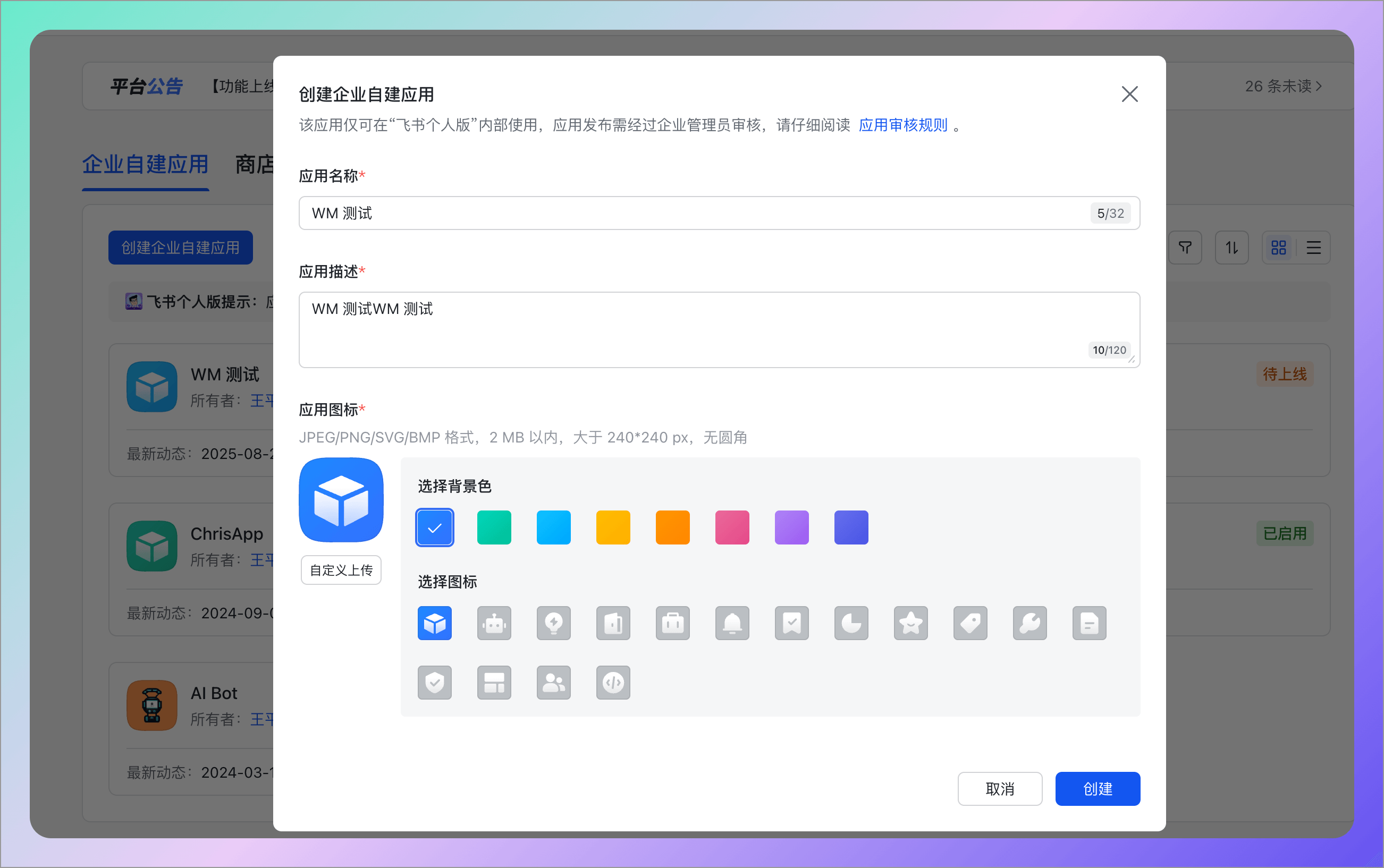
Then copy the App ID and App Secret:
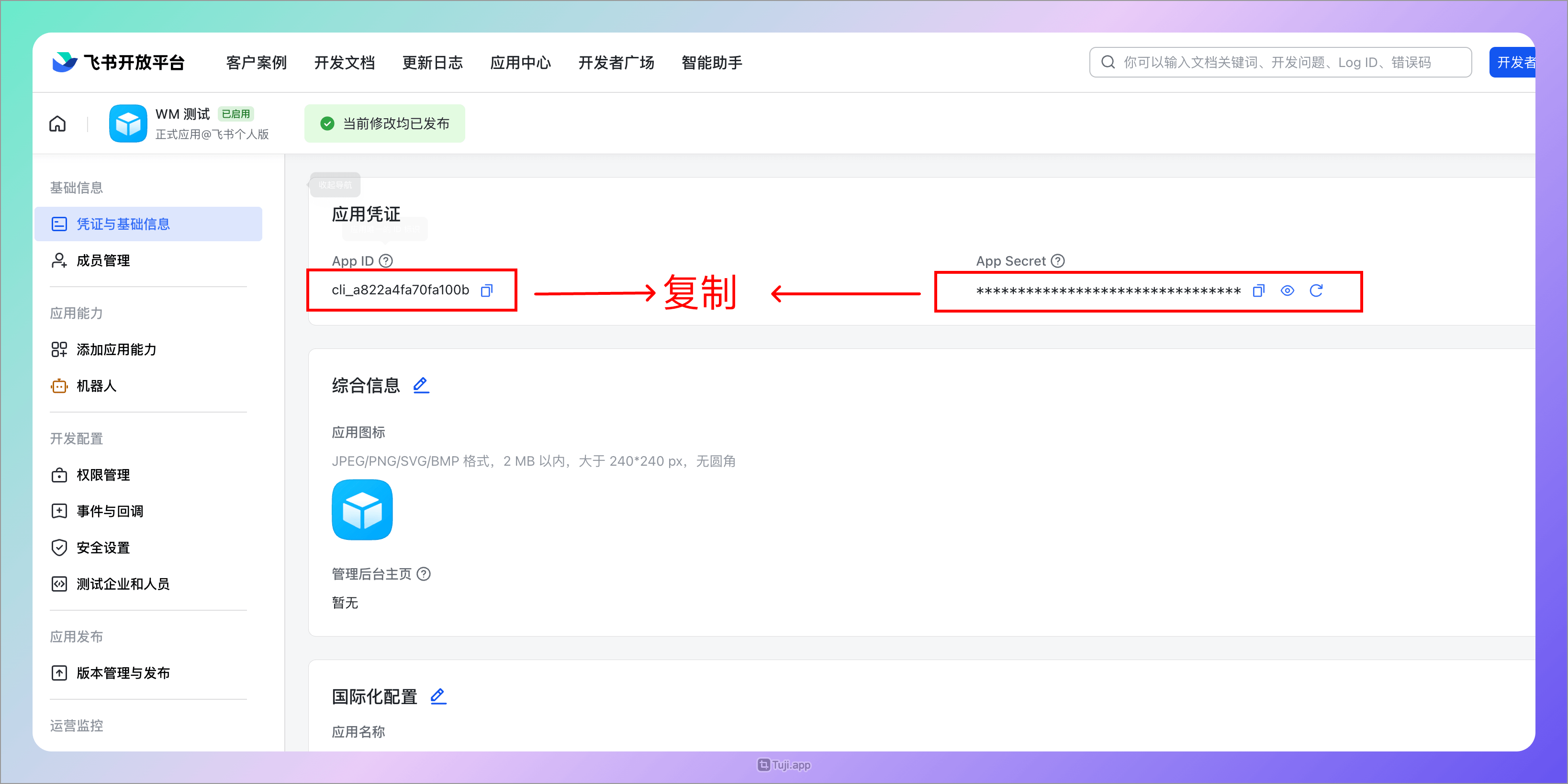
and paste them into WiseMindAI:
5.2 Configure Permissions
Additionally, you need to configure permissions in the Feishu application created above:
- Create records
base:record:create - View, comment on, edit, and manage multi-dimensional tables
bitable:app
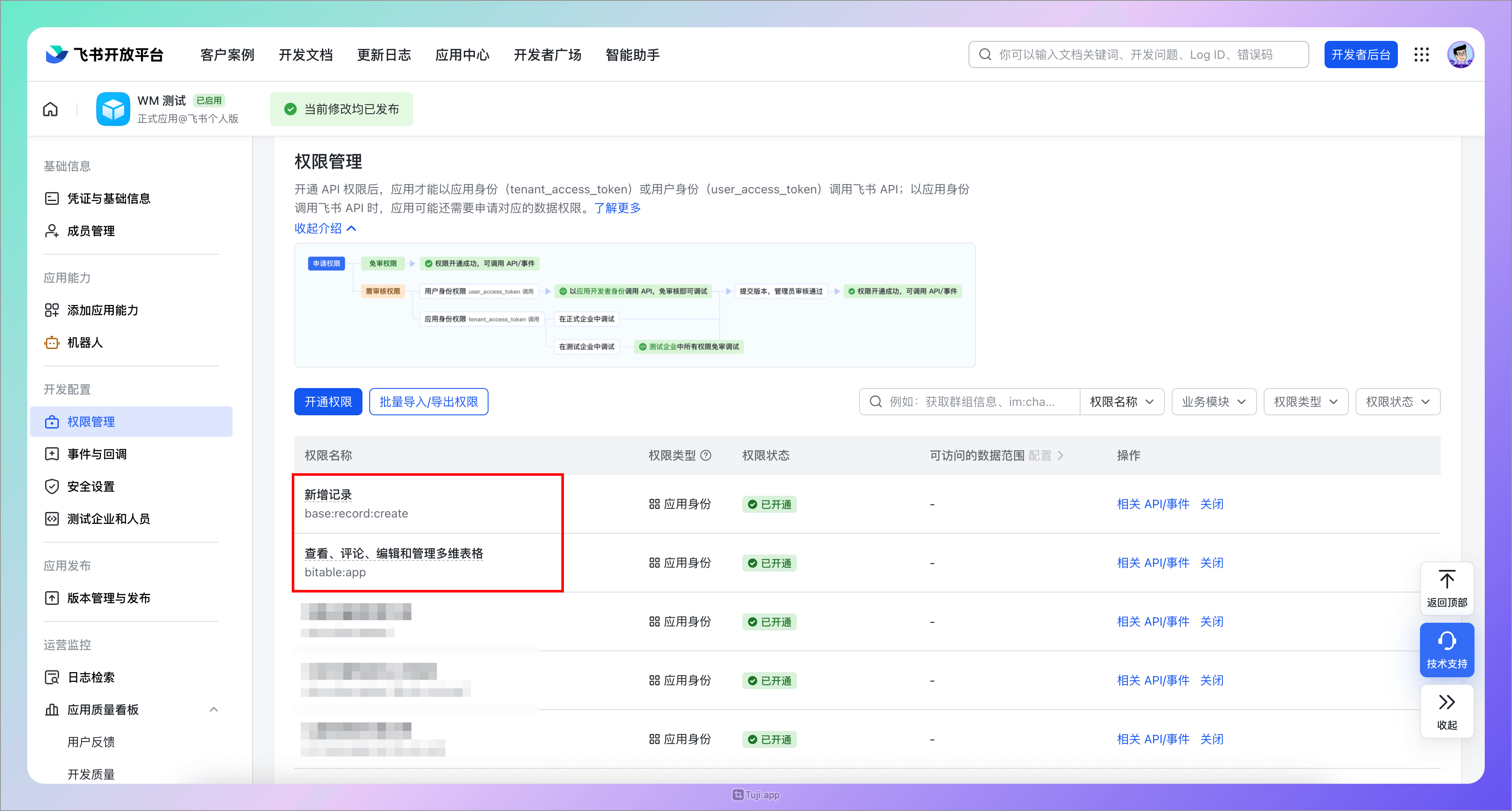
Don't forget to publish the application at the end.
5.3 Create Multi-dimensional Table and Fields
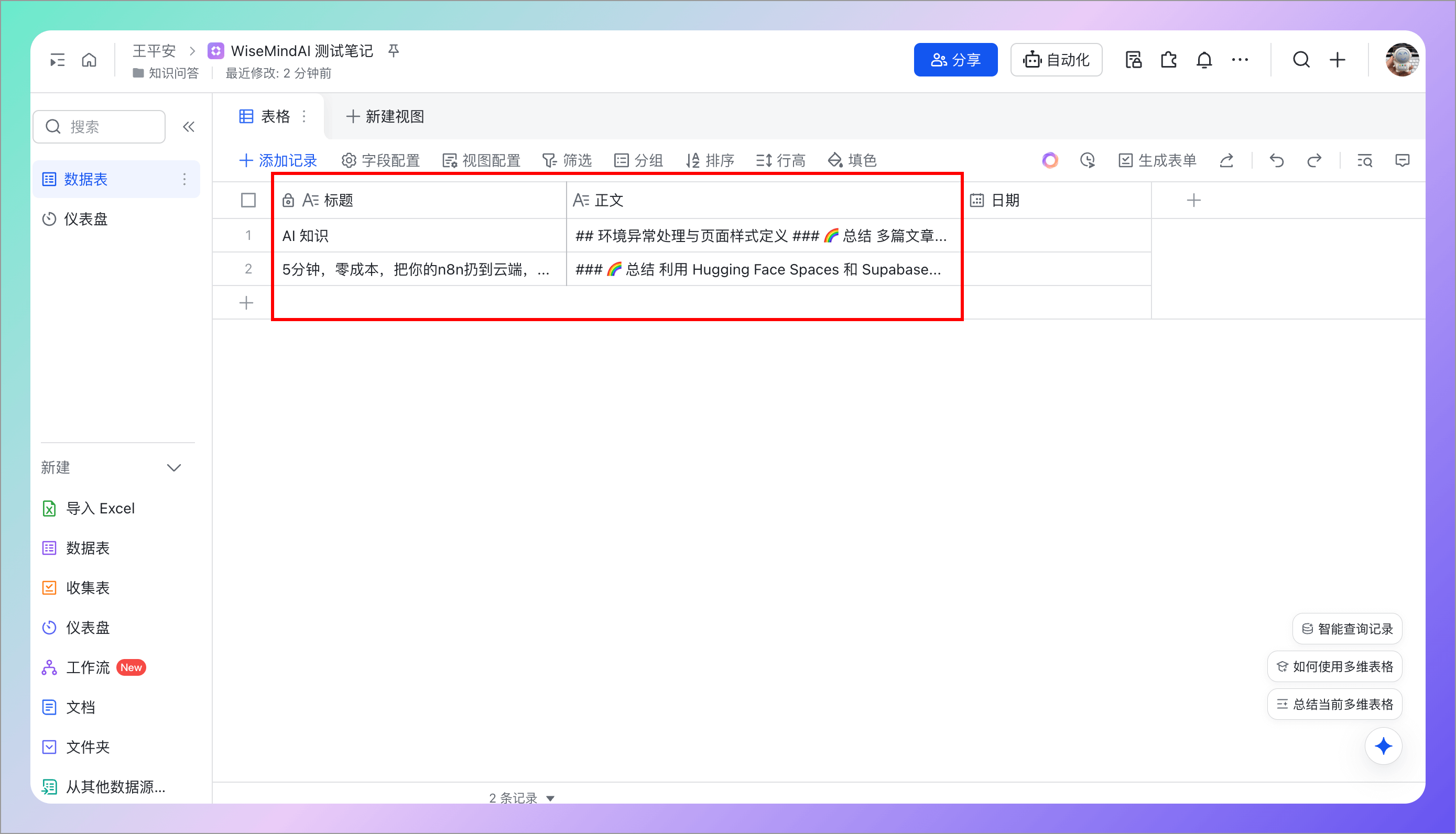
Next, create a multi-dimensional table and set up fields for saving title and body content—for example, Chris creates a "Title" field to store titles and a "Body" field to save the main text content. Then enter these field names into WiseMindAI settings under "Title Field" and "Content Field".
5.4 Add Application to Multi-dimensional Table
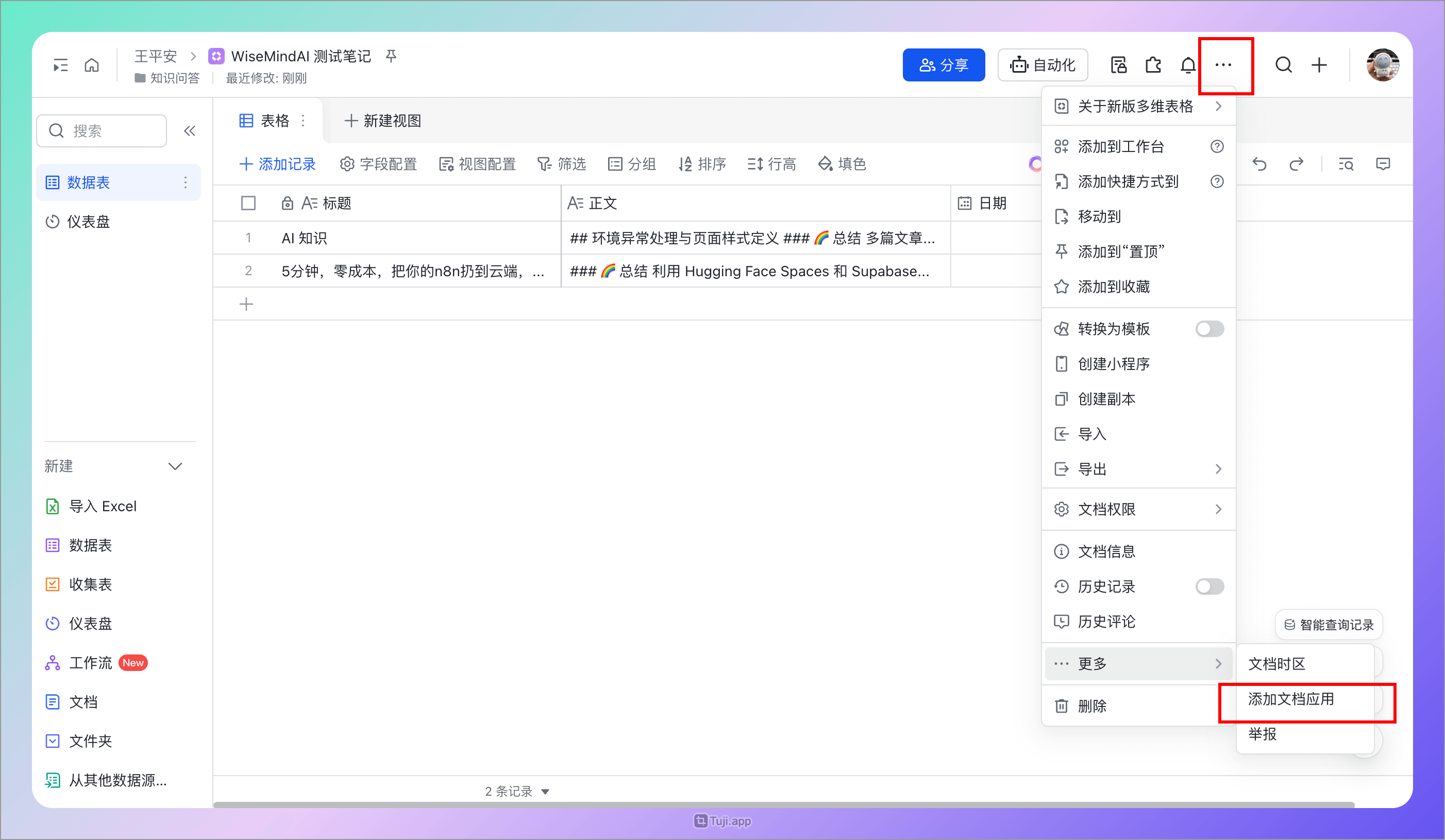
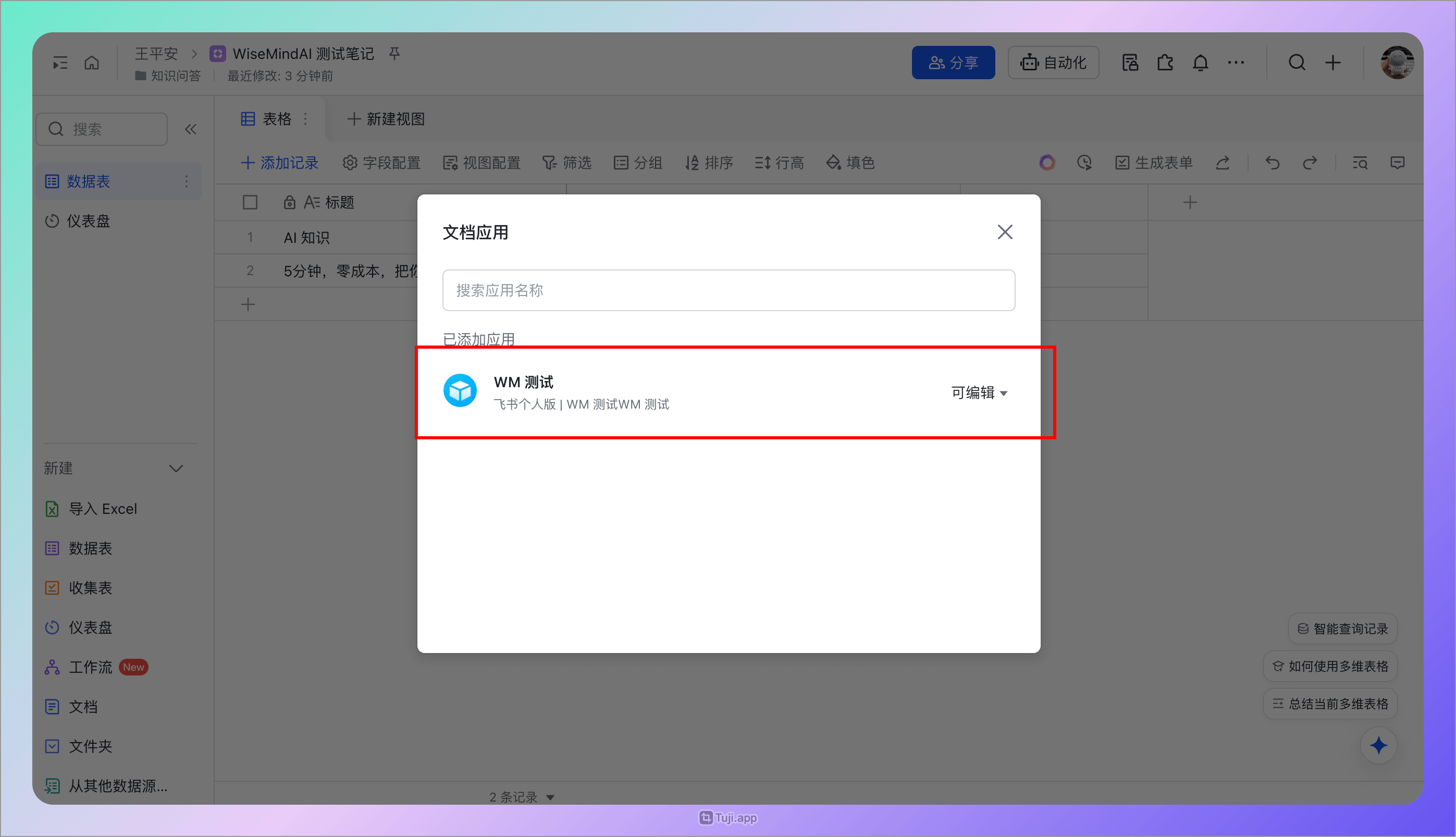
Next, add the document application to your multi-dimensional table by clicking the "..." button in the top-right corner, opening "More", then selecting "Add Document App". Search for and select the previously created application to add it.
5.5 Copy App Token and Multi-dimensional Table ID
Next, copy the multi-dimensional table URL from your browser address bar (format: https://wisemindai.feishu.cn/base/{AppToken}?table={Multi-dimensionalTableID}&view=vew8vvaaa), then extract:
- App Token
- Multi-dimensional Table ID
and fill them into WiseMindAI configuration.
6. Mo Wen
The Mo Wen platform is primarily used via mini-programs and requires a Pro membership to support API calls:
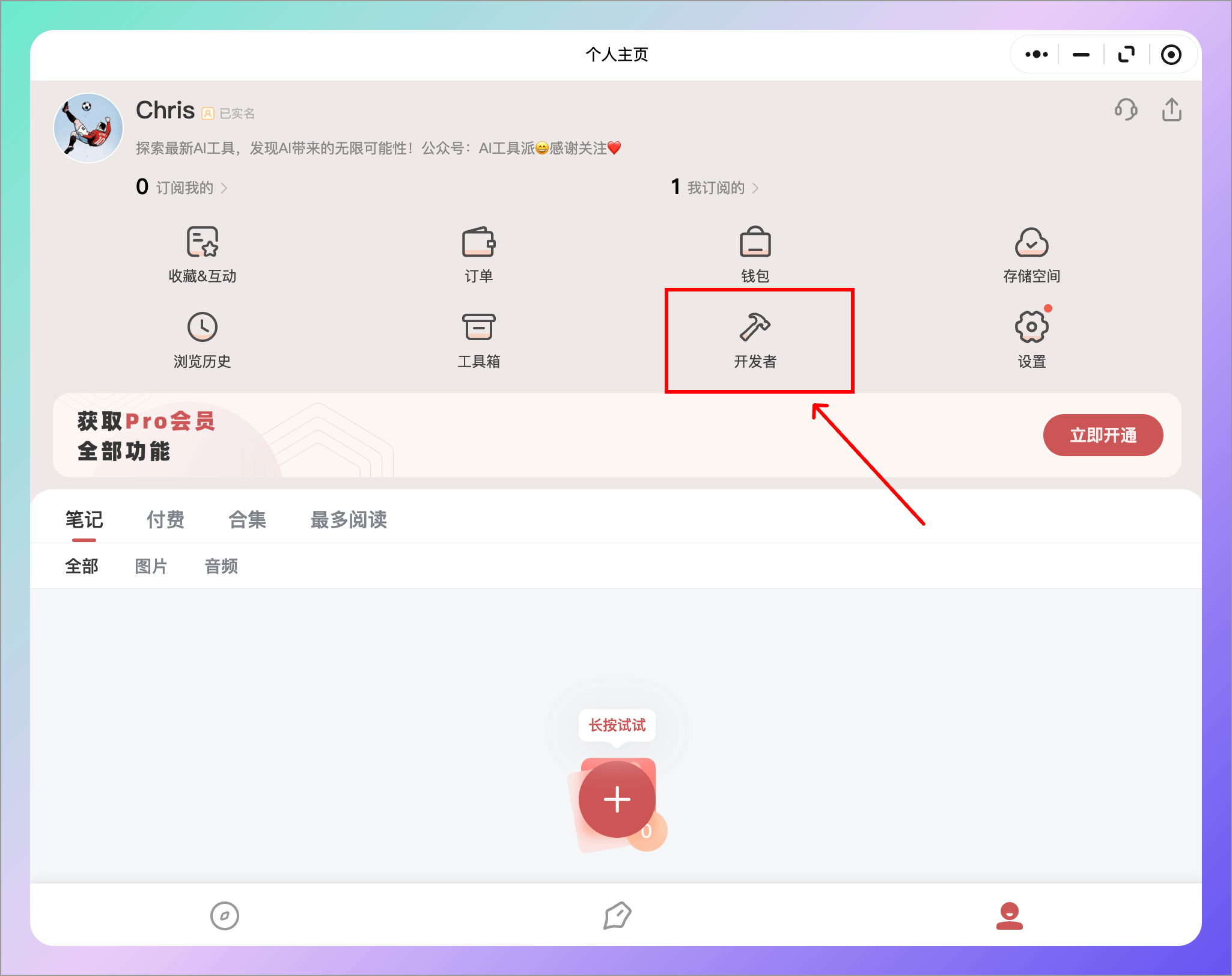
- Open the "Developer" menu in the mini-program
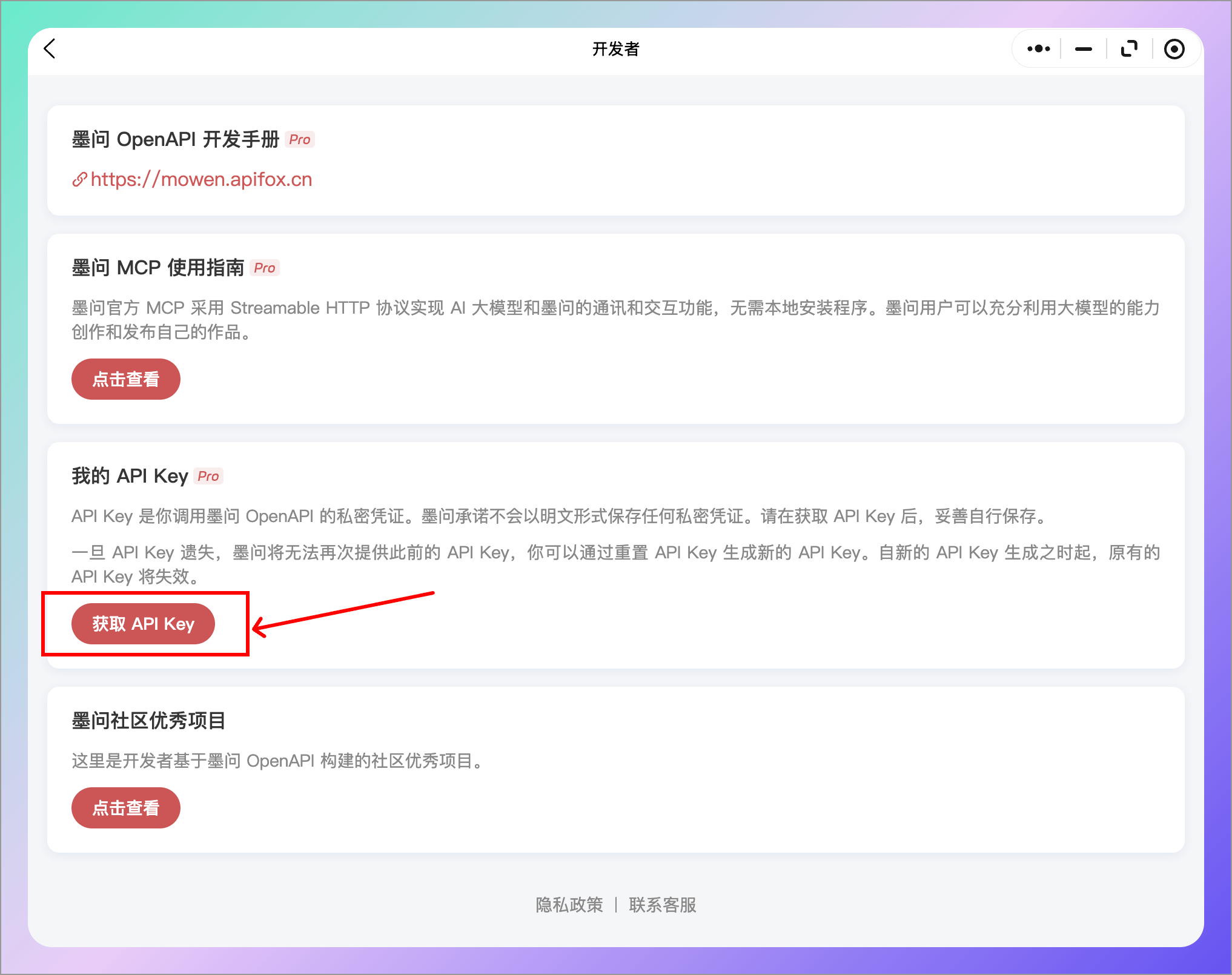
- Click "Get API Key"
7. Evernote
- Open the Evernote Developer Page
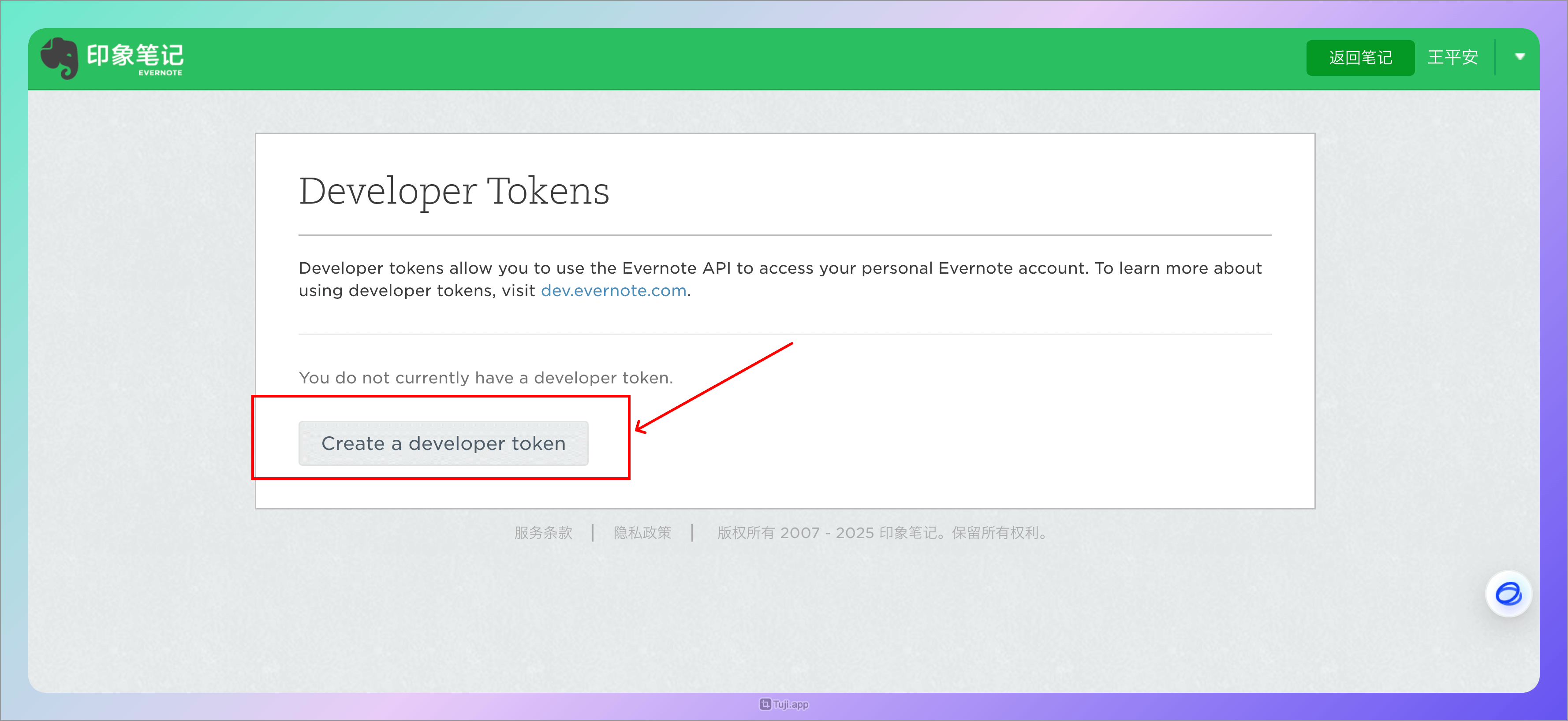
- Create a Developer Token
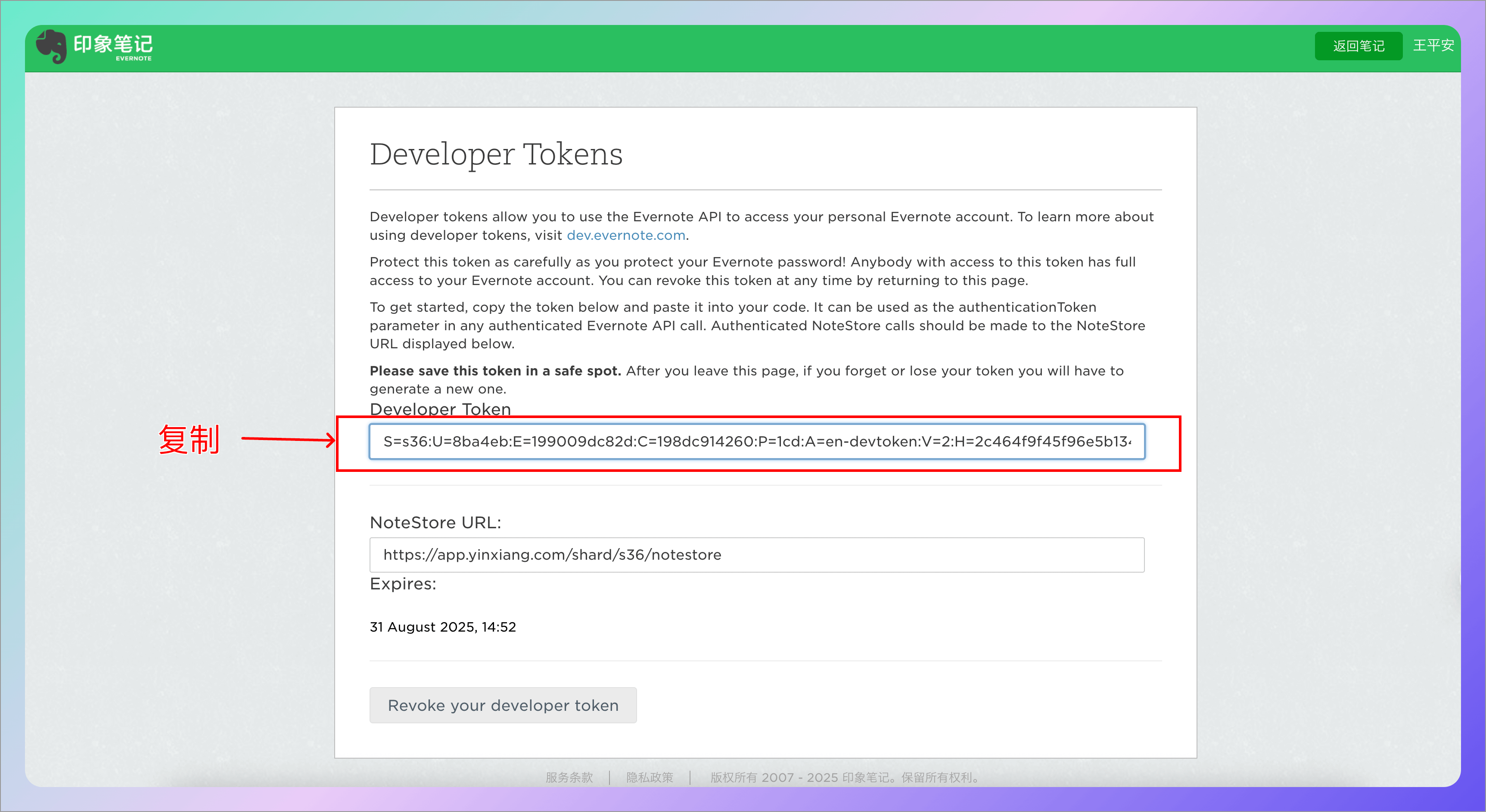
- Copy the Developer Token and paste it into WiseMindAI