
Model Configuration
WiseMindAI's AI features require initial model configuration. There are two ways to set this up:
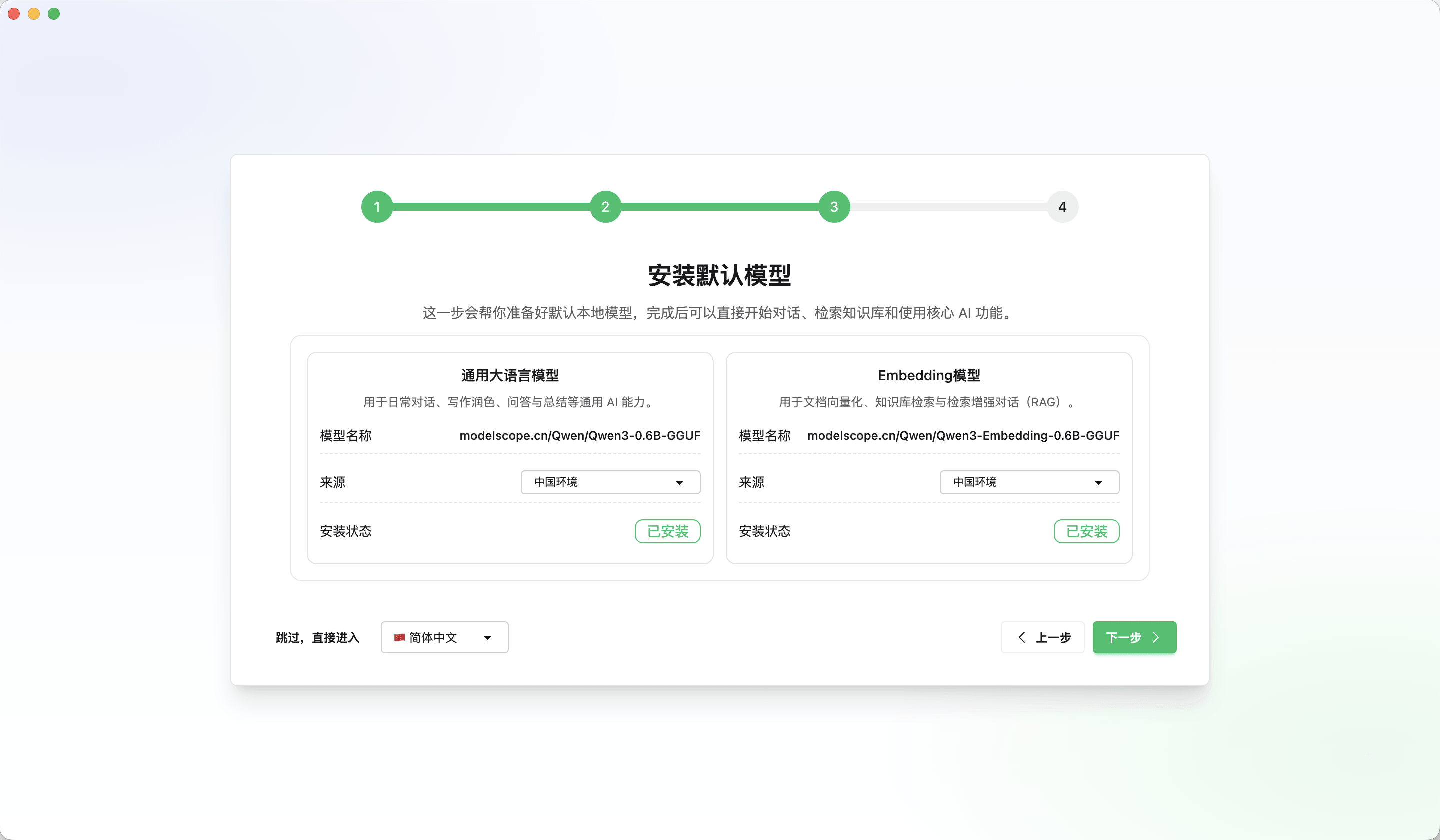
Initial Setup: When you first launch WiseMindAI, it will guide you through installing a local model and completing basic workspace settings.
Third-party Keys: You can also connect your own existing third-party API keys, such as those for ChatGPT, DeepSeek, Gemini, etc.
Open the 「Settings」 menu in the bottom-left corner of WiseMindAI and navigate to «Model Settings» to configure different models based on usage scenarios.
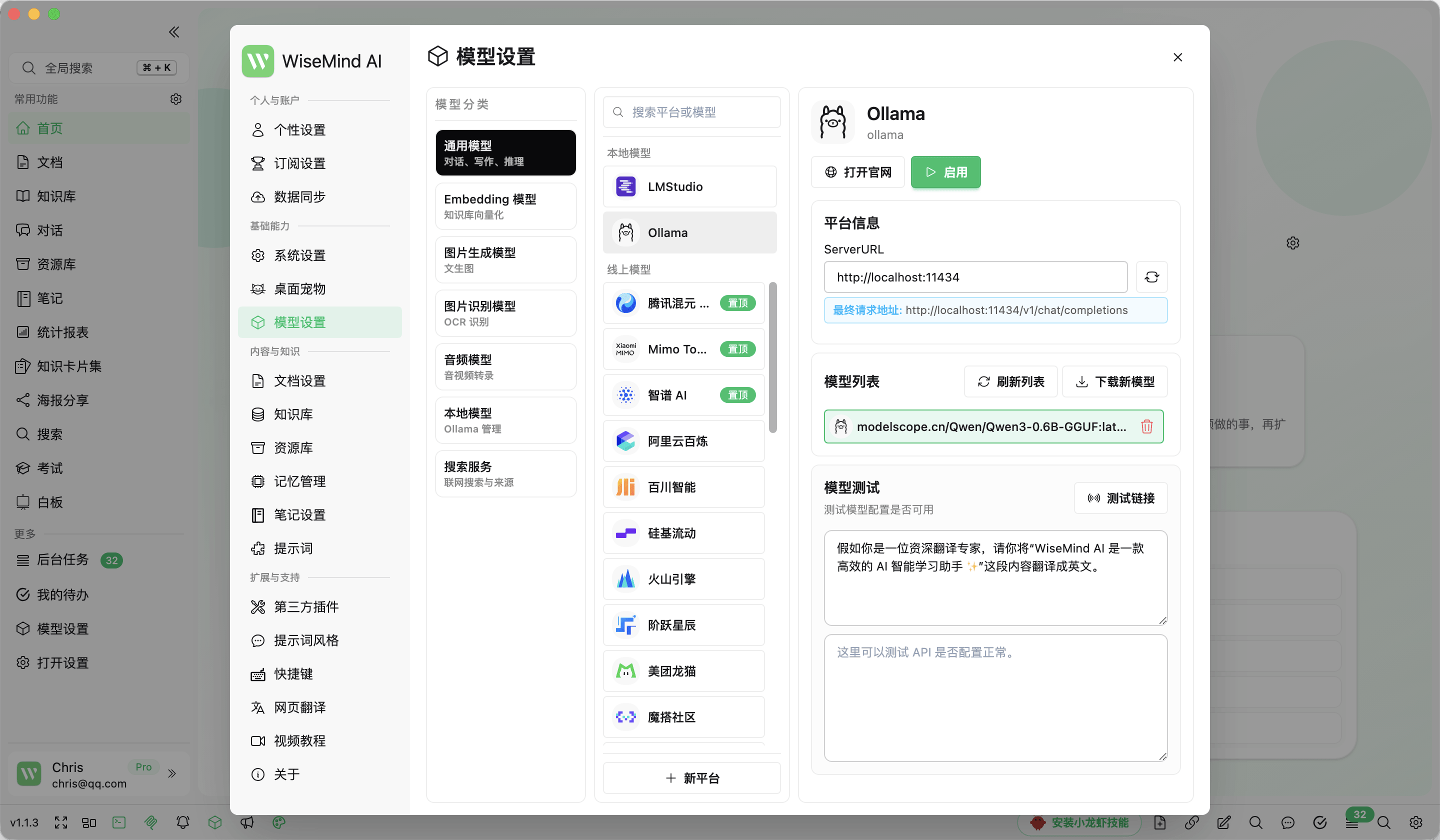
All subsequent model settings can be modified here at any time.
Configure by Need
- Local Models: Used for managing local general-purpose model services such as Ollama or LM Studio. FunASR local transcription is also available under Audio and Live Transcription models.
- General LLMs: Used for core features such as AI chat, document summarization, knowledge base summaries, knowledge cards, mind maps, and plugins. You can also specify whether each model can be used for AI Work. See: Apply Large Language Model Key.
- Embedding Models: Converts documents, web pages, notes, etc., into searchable knowledge indexes; a critical prerequisite for knowledge base Q&A. See: Apply Embedding Model Key.
- Image Recognition Models: Extract text from or understand images, screenshots, and scanned materials, with support for more OpenAI-compatible API providers. See: Apply OCR Service Key.
- Audio/Video Transcription: Converts audio or video content into text with local FunASR or an online service, then supports summaries, outlines, and knowledge card generation. See: Audio/Video and Live Transcription Models.
- Image Generation Models: Generates infographics, posters, and other images based on concepts or prompts. See: Apply Image Generation Model Key.
- Live Transcription Models: Convert continuous microphone audio into real-time transcripts for meetings, classes, and interviews. Supports local FunASR recognition and multiple online providers. See: Live Transcription.
Audio/video transcription and Live Transcription appear in separate model categories. Online providers may activate and bill them separately. With FunASR, a downloaded model can be shared between both entry points without using duplicate storage.
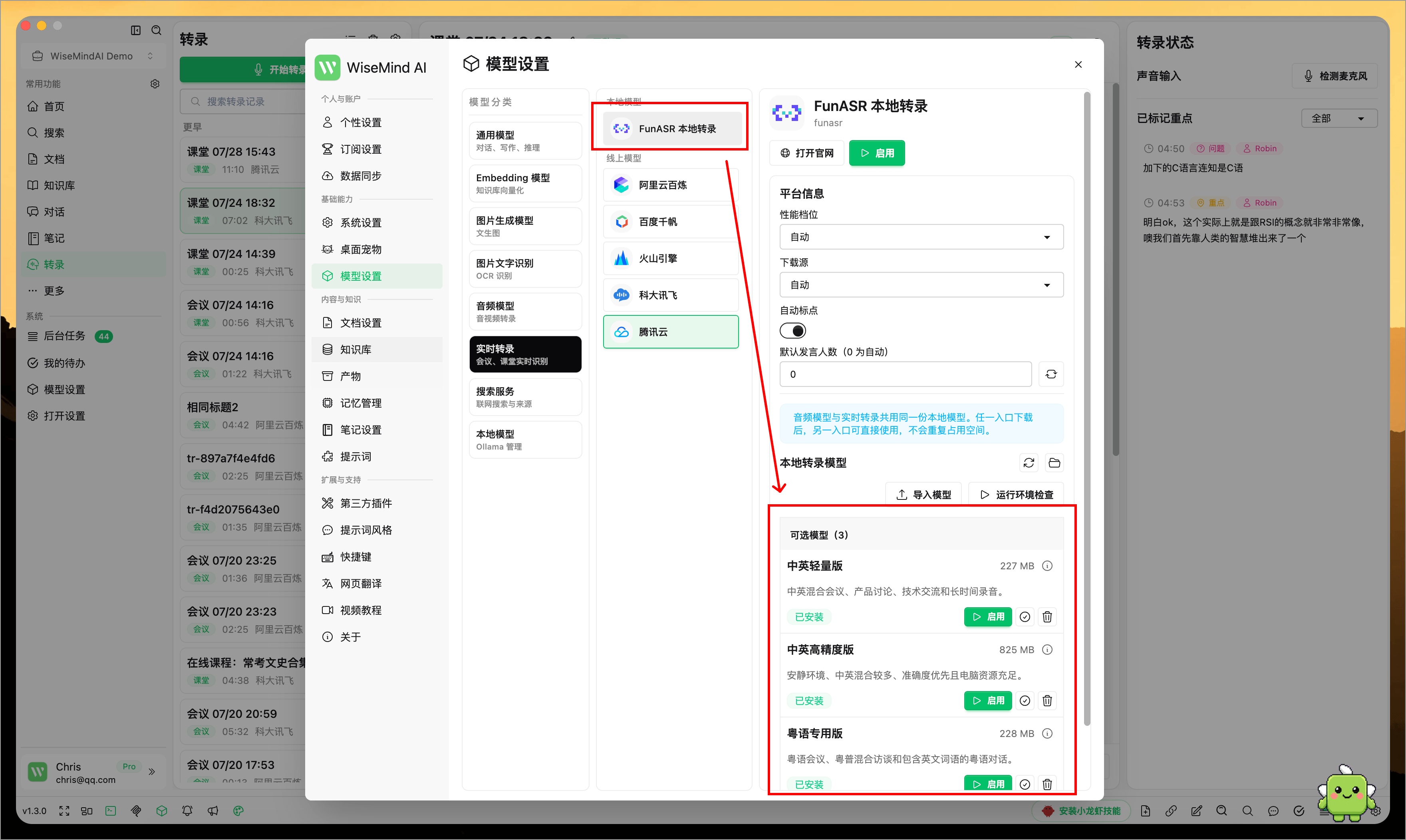
Local FunASR transcription models
FunASR supports Chinese, English, mixed Chinese-English, and Cantonese scenarios. Once the model is ready, recognition runs directly on the current computer without an API key or cloud transcription fees.
Choose Lightweight Chinese-English, High-Accuracy Chinese-English, or Cantonese based on your computer and language needs. If network access is limited, you can also import a FunASR offline package or an extracted model folder.
Update the model list online
Starting with v1.4.0, the model list can load the latest information online without waiting for a new WiseMindAI release to add model names.
Models that have been retired or are no longer recommended display their current status. Before adding or switching a model, confirm that it remains available and use the Test action on the current page to verify the configuration.
AI Work shows the model actually used. When you switch models within the same conversation or task, the page also keeps a notice so you can identify which model generated each part later.
Test online models directly
After configuring an online model, select Test on its model card. WiseMindAI sends a minimal request with a built-in sample to verify the key, model name, and service endpoint.
Direct testing is currently available for:
| Model category | Test result |
|---|---|
| General LLM | Returns a short test response |
| Embedding Model | Displays the generated vector dimensions |
| Image Generation | Displays a generated test image |
| Image Text Recognition | Displays text recognized from a built-in image |
| Audio Model | Displays a transcription of built-in audio |
| Live Transcription | Displays recognized text, time to first segment, and total duration |
You do not need to set a model as active before testing it. A successful test does not change the active model or create production data.
Cost notice
An online test makes a real provider request and may incur a small fee. Fees are charged by the provider. Local models do not display this online testing option.
Understand test errors
If a test fails, use the message on the page to check:
- Incomplete configuration: One or more required fields are empty.
- Authentication failed: The API Key, Secret Key, or another credential is incorrect.
- Cannot connect: The network is unavailable or the endpoint is incorrect.
- Model not found: The model name is incorrect or the account lacks permission.
- Insufficient quota or too many requests: Add credit, wait for quota recovery, or retry later.
- Request timed out: The provider is responding slowly; retry later.
- No valid result: The service responded without usable text, an image, or a vector.
If the test succeeds but the feature still does not work, confirm that the feature uses the same model and that the current material meets its processing requirements.
Usage Recommendations
If you are new to WiseMindAI, start by keeping the default local model installed, then add a General LLM key as needed. This ensures core features like document summarization and knowledge base Q&A remain stable.
If you already have API keys from platforms such as OpenAI, Gemini, DeepSeek, Kimi, Zhipu AI, Alibaba Cloud Bailian, or OpenRouter, enter them directly in the corresponding service provider section within WiseMindAI. For other OpenAI-compatible interfaces, select Custom OpenAI-Compatible Service.
After configuration, test the model before processing a long document, generating an image, or starting a recording. This catches key, model name, endpoint, and quota issues early.
Troubleshooting Tips
If document summarization works but document chat or knowledge base Q&A performs poorly, prioritize checking if your Embedding model is configured and whether documents have been analyzed.
If vectorization fails for a document, check the error message and logs. Newer versions record more detailed failure information to help diagnose issues related to model configuration, network connectivity, document format, or content size.
If Live Transcription receives no text, run the microphone test and the Live Transcription model test separately. The microphone test confirms that the device receives sound, while the model test confirms that the provider can recognize it. Both must pass.