
🧭 AI Knowledge Outline
AI Knowledge Outline helps you quickly understand the knowledge structure of a document. Instead of simply copying the original table of contents, it reorganizes the content into modules and knowledge points, then identifies core concepts, common pitfalls, and actionable information.
When reading textbooks, lecture notes, research reports, product documentation, or project materials, you can first build an overall understanding with a knowledge outline, then decide which sections to study closely, ask questions about, or organize further.
Before you begin
Configure a Large Language Model API Key first.
💡 Features
- Organizes long documents into a hierarchical knowledge tree by topic and concept.
- Shows the number of modules, knowledge points, and high-value highlights.
- Filters core knowledge, common pitfalls, and actionable content.
- Shows an explanation and source location for each selected knowledge point.
- Lets you ask follow-up questions about an individual knowledge point.
- Turns knowledge points into notes, knowledge cards, or exams.
- Saves the outline with the current document so you can continue later.
📖 How to use it
1. Open the outline
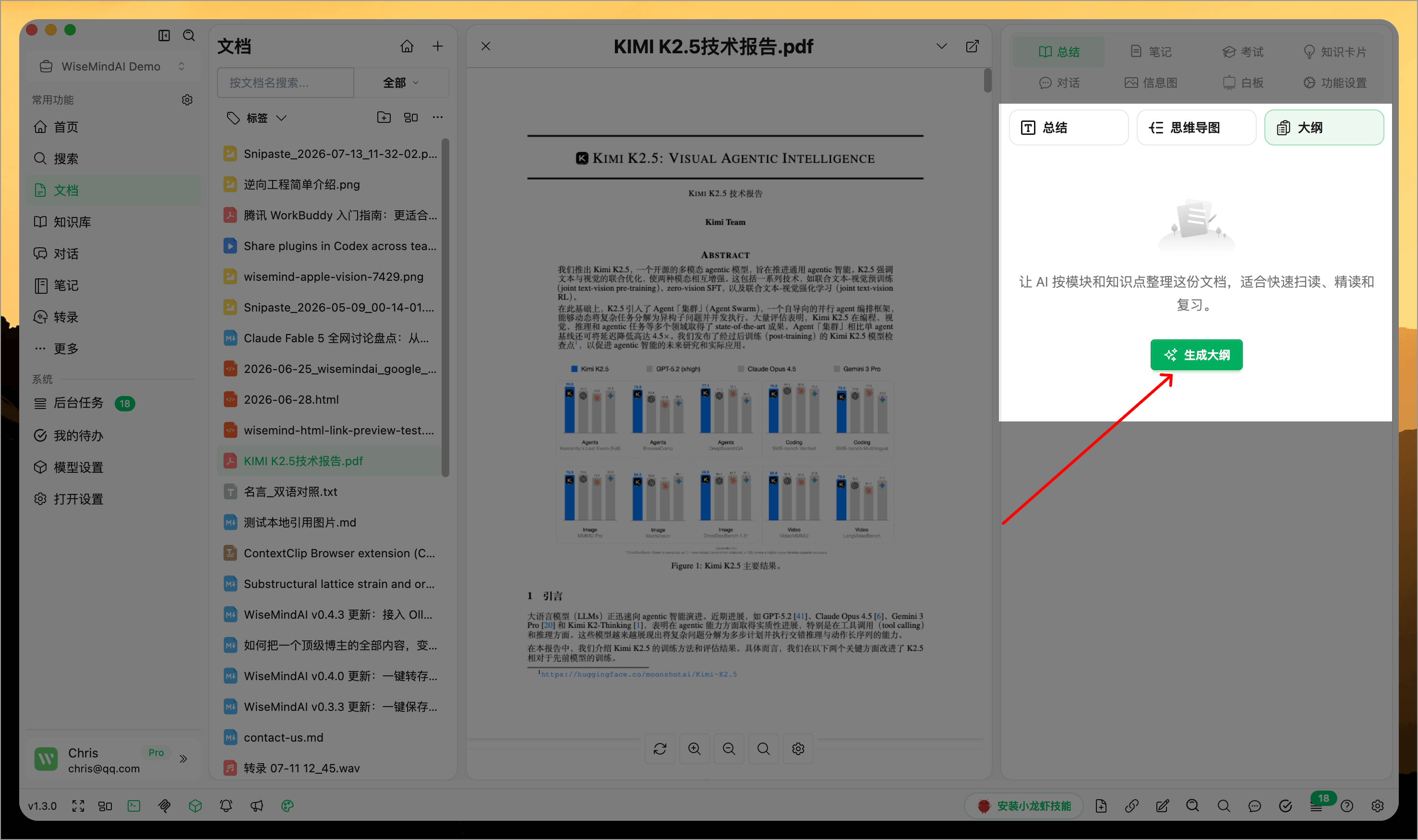
Open a document in Document Center, go to the Summary panel on the right, and switch to Outline. If the document does not have an outline yet, select Generate Outline.
2. Generate an AI Knowledge Outline
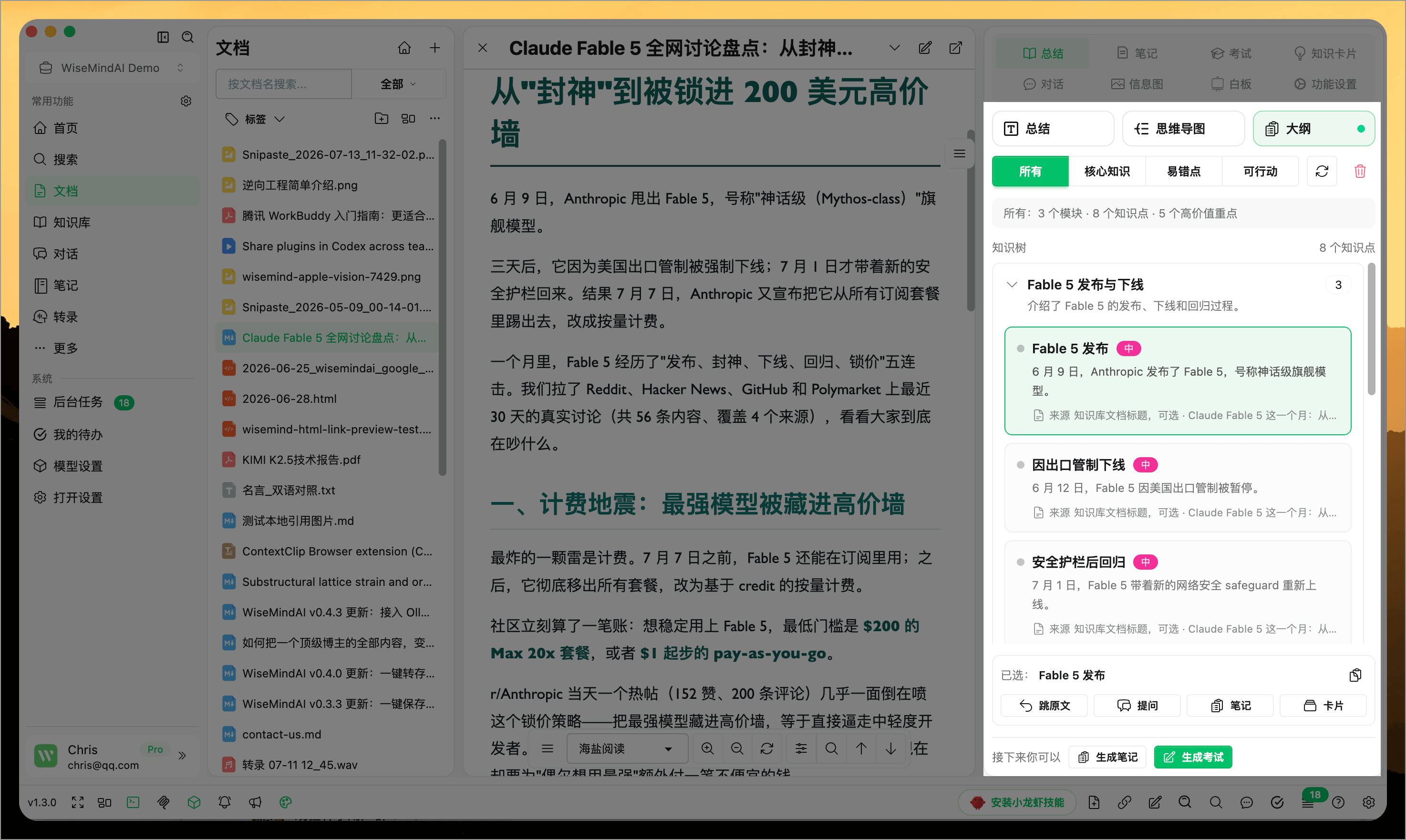
After you select Generate Outline, WiseMindAI reads the current document and organizes it into modules and knowledge points. Longer documents usually take more time, but you can continue reading the document while the outline is generated.
When complete, the page shows:
- The document's main modules.
- The knowledge points under each module.
- Which items are core knowledge, common pitfalls, or actionable content.
- The importance and a short explanation of each knowledge point.
3. Filter knowledge points by type
Use the filters at the top of the outline:
- Core Knowledge: The most important concepts to understand first.
- Common Pitfalls: Content that is easy to confuse, overlook, or misunderstand.
- Actionable: Steps and suggestions that you can apply, practice, or carry out.
For study materials, start with Core Knowledge to build a framework, then review Common Pitfalls. For work documents, you may want to begin with Actionable items.
4. View a knowledge point and jump to the source
Select any knowledge point in the tree to view its title, explanation, and source location on the right. Select Jump to Source to continue reading the relevant part of the document.
Some document formats cannot provide an exact paragraph location. In those cases, WiseMindAI jumps as close as possible and displays a notice.
5. Continue learning from a knowledge point
After selecting a knowledge point, you can:
- Ask: Open document chat with the knowledge point and its context, then ask AI for a deeper explanation.
- Note: Turn the current content into a note and add your own understanding.
- Card: Create a knowledge card for later review.
- Generate Exam: Create questions from the current outline to check your understanding.
The bottom of the page also includes Generate Note and Generate Exam, which are useful for turning the complete outline into study materials.
How does it differ from a text summary or mind map?
- Text Summary: Best for quickly reading a coherent overview.
- Mind Map: Best for seeing hierarchy and relationships visually.
- Knowledge Outline: Best for browsing and filtering individual points, jumping to the source, and creating notes, cards, or exams.
If you only need the main conclusions, start with a text summary. If you want to study a long document systematically, use the knowledge outline as the starting point for deeper reading and review.
🌈 Use cases
- Build a complete framework before studying a textbook or lecture notes.
- Find methods, conclusions, and common pitfalls in papers and research reports.
- Extract key modules and action items from product or project documentation.
- Plan exam revision around core knowledge and common pitfalls.
- Gradually turn a long document into notes, cards, and exam papers.
FAQ
Does generating a knowledge outline change the source document?
No. The outline is a separate learning result generated from the document and does not modify the source.
Does the outline update automatically when the document changes?
The existing outline remains available. If the document has changed significantly, clear or regenerate the outline so it reflects the latest content.
Why can't some knowledge points jump to the exact source text?
Available paragraph and location data varies by document format. Well-structured Markdown and HTML are usually easier to locate precisely, while scanned documents and complex formats may only support an approximate location.
Can I save a knowledge outline directly as a note?
Yes. You can generate a note from an individual knowledge point or use Generate Note at the bottom of the page to organize the complete outline.