
🐾 Desktop Pet
The WiseMindAI desktop pet is a lightweight persistent entry point. It does not replace your main window but allows you to quickly open WiseMindAI, jot down ideas, check background tasks, or make the learning process more companionable—all without breaking your current workflow.
Use Cases:
- Reading, writing, or organizing documents and don't want to frequently switch back to the WiseMindAI main window.
- Wanting to casually record an idea, question, link, or pending item.
- Preferring a clear status reminder when background tasks are executing.
- Enjoying having WiseMindAI pinned to your desktop edge for instant access.
Enable Desktop Pet
- Open WiseMindAI Settings → Desktop Pet.
- Toggle on Enable Desktop Pet.
- If you want the pet to appear automatically upon launching, enable Show on Application Start.
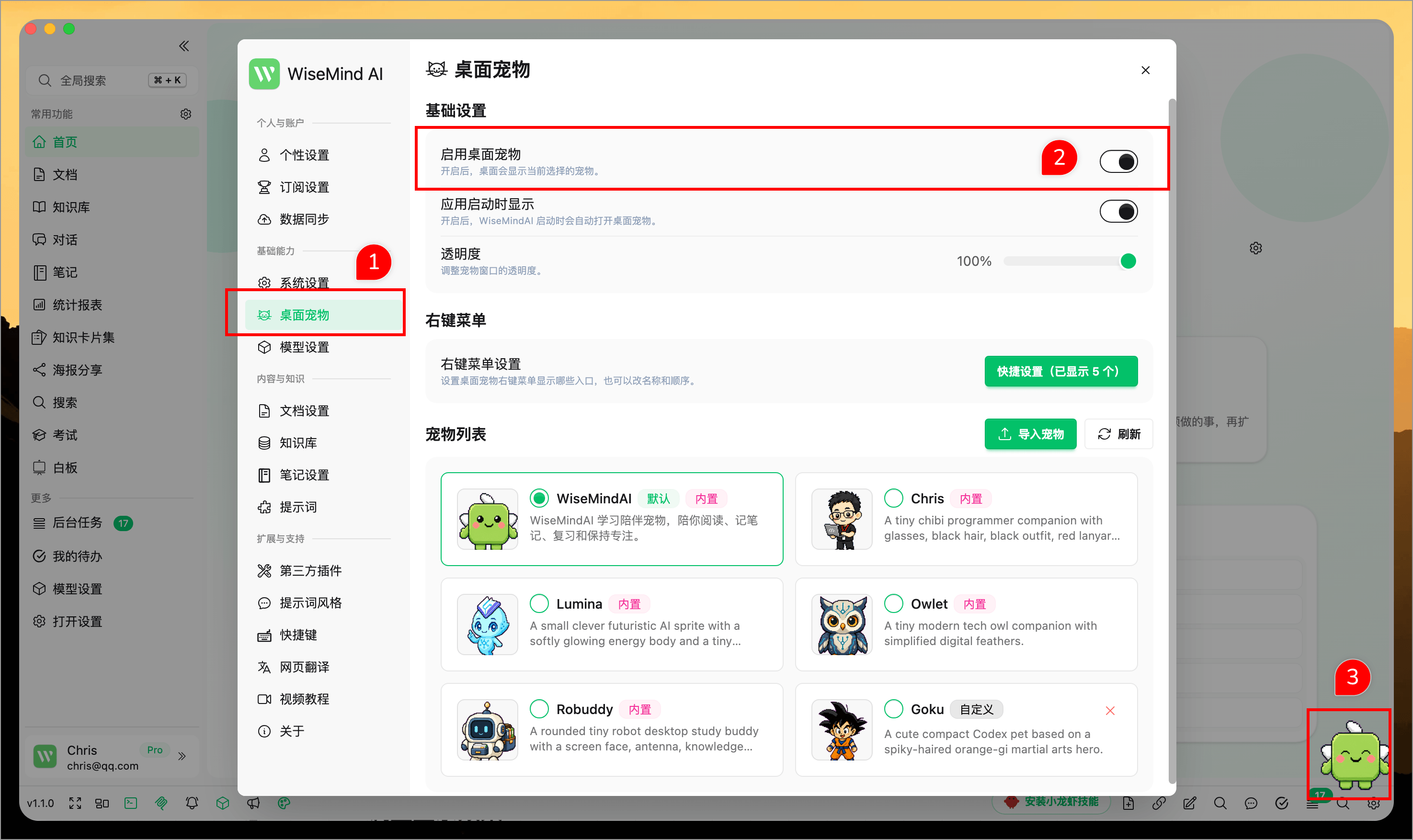
Once enabled, your chosen desktop pet will appear on the screen. You can drag it to any edge or area that doesn't interfere with your work.
Configure the double-click action
Choose what happens when you double-click the desktop pet:
- Open the WiseMindAI main window;
- Start Global Quick Screenshot;
- Open Quick Note.
Change this under Settings → Desktop Pet, then double-click the pet to run the selected action. The pet window and double-click response have also been improved, making the pet a lightweight entry point for frequently used features.
Use Context Menu
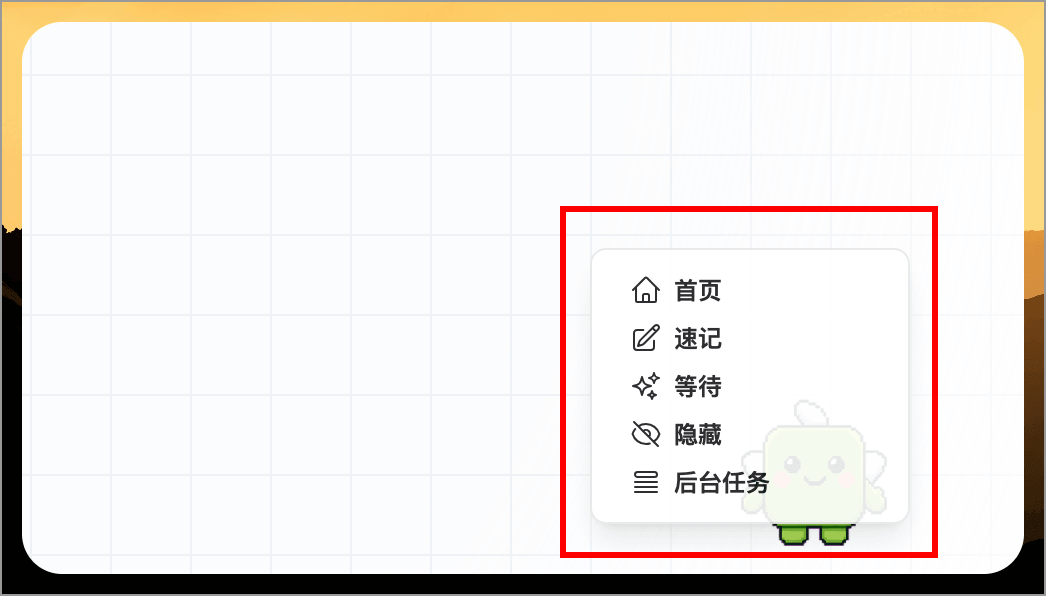
Right-clicking the desktop pet opens a quick-access menu. The default options include:
| Option | Function |
|---|---|
| Home | Open WiseMindAI main window |
| Quick Note | Rapidly record ideas or content |
| Wait | Put the pet into waiting state |
| Hide | Temporarily hide the desktop pet |
| Tasks | Open WiseMindAI background tasks |
View Task Status
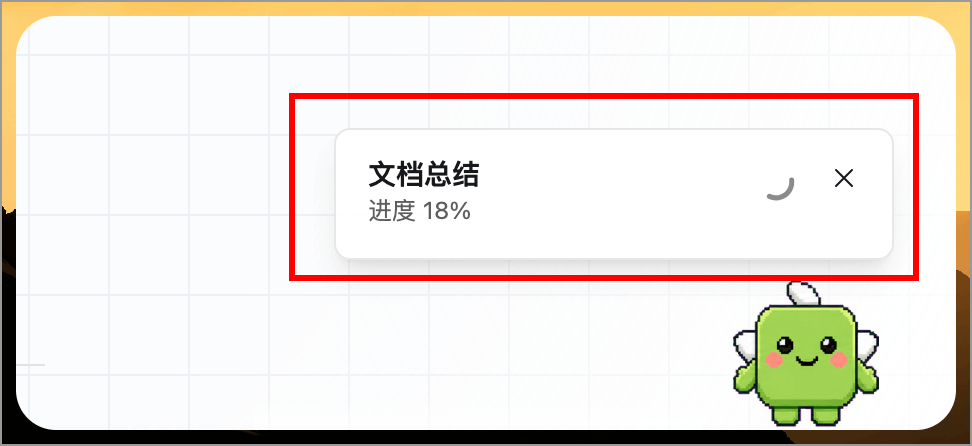
When a background task is running, a notification appears next to the desktop pet showing up to two active tasks. You can see:
- The current task name.
- The task status (e.g., waiting, executing, progress, completed, or failed).
- A count indicator if multiple tasks are present.
Clicking the notification opens the background tasks page; you may also dismiss it if you prefer not to view it at that moment.
Switch Pets
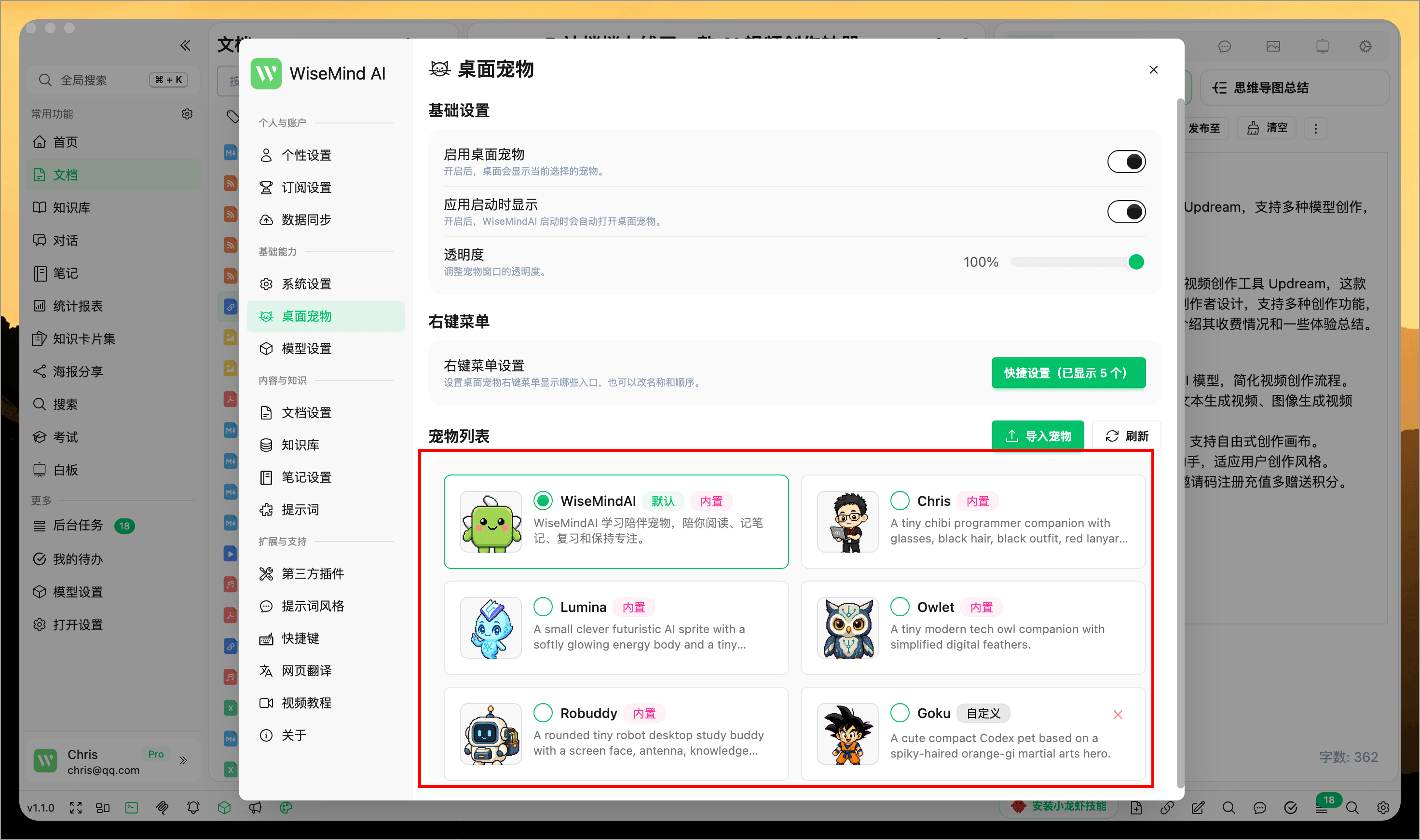
Navigate to Settings → Desktop Pet → Pet List and select your preferred pet. WiseMindAI includes several built-in pets, and the selection takes effect immediately in the desktop pet window.
The pet list indicates:
- Default: Pets provided by default with WiseMindAI.
- Built-in: Pets included directly with the application.
- Custom: Pets you have imported yourself.
Import Custom Pets
If you possess a desktop pet pack compatible with Codex standards, you can import it into WiseMindAI.
- Go to Settings → Desktop Pet → Pet List.
- Click Import Pet.
- Drag and drop the ZIP archive or pet folder, or click to select files.
- Once imported successfully, choose your new pet from the list.
Pet packs must include:
pet.json
spritesheet.webp
It is recommended to use a spritesheet.webp image sized at 1536×1872, created using an 8×9 frame grid. Free users can import up to 2 custom pets, while members have no limit.
Alternatively, you can download and import new pets from Petdex.