
🧩 Whiteboard
The WiseMindAI Whiteboard is designed to organize structures, processes, relationships, and drafts. Unlike writing a paragraph of text, the whiteboard allows you to place scattered pieces of information into one space, helping you see how your materials connect.
You can use it for:
- Outlining the structure of an article or book.
- Breaking down concepts and learning paths.
- Mapping product flows, project steps, or solution drafts.
- Brainstorming by placing ideas onto a canvas first.
- Converting documents and knowledge base content into intuitive diagrams.
Before You Start
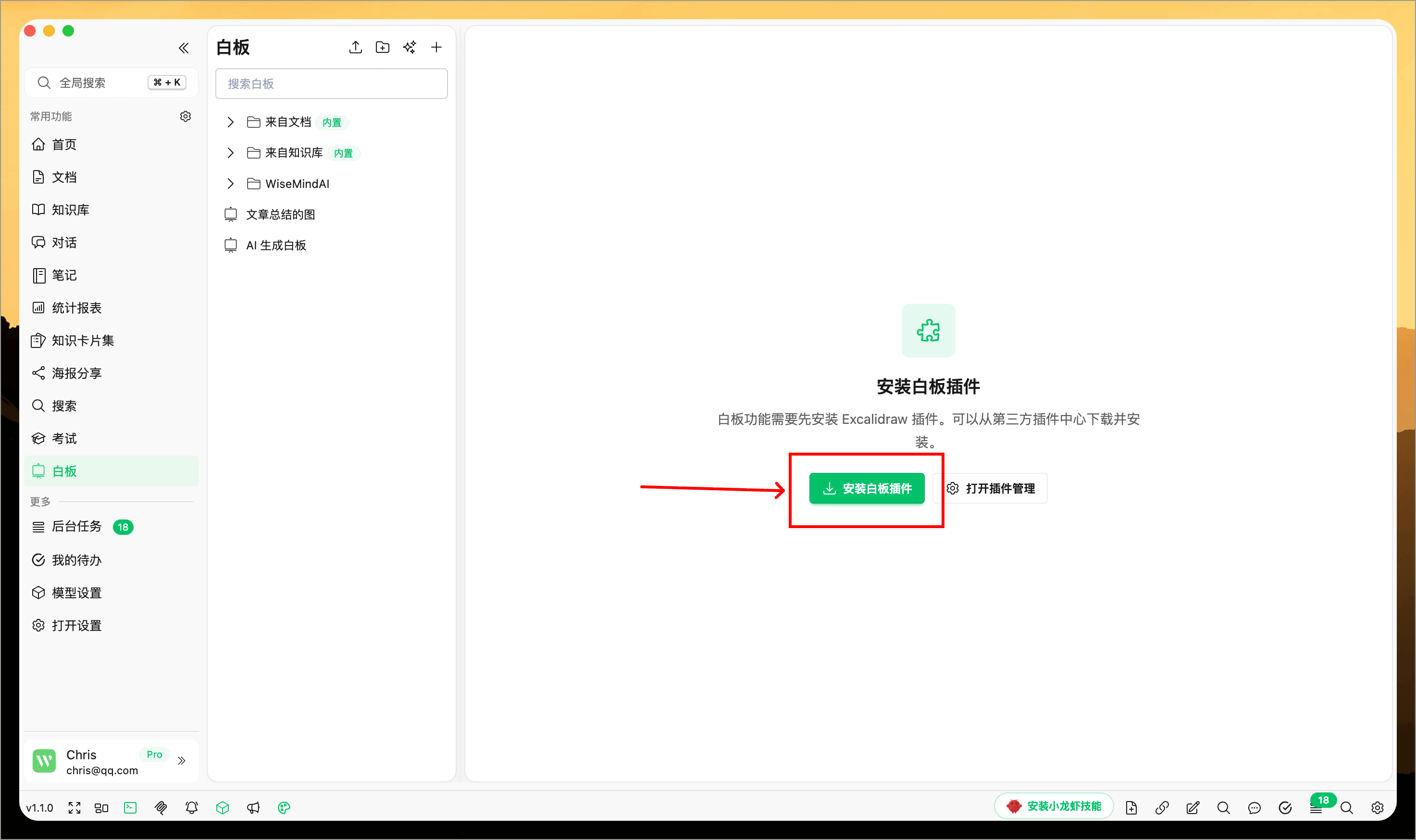
The whiteboard functionality is based on the Excalidraw plugin. If prompted to install the plugin upon entering your first whiteboard, click Install Whiteboard Plugin as instructed on the page. Once installed, you can create and edit boards within WiseMindAI.
If the plugin fails to load properly, go to Plugin Management to check if the whiteboard plugin is installed correctly.
Create a New Board
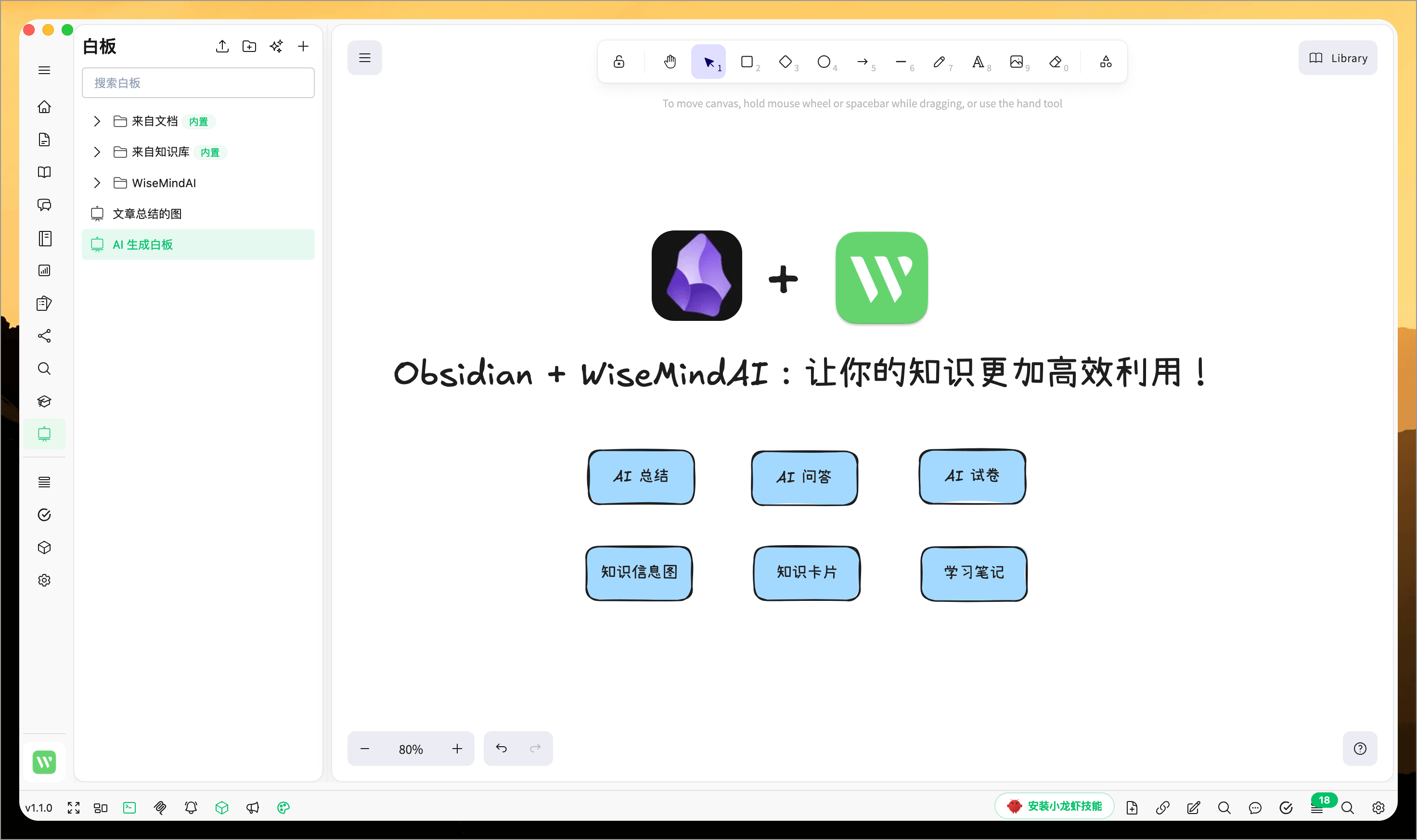
Click Create New Board in the top-left corner of the board page to create an empty canvas. You can freely add text, shapes, arrows, connectors, and sketches on your canvas.
Create a Board with AI
If you prefer not to start from scratch, click Create Board with AI.
You can input:
- A topic, such as "Help me organize the structure of Feynman's learning method."
- An article summary.
- A learning objective.
- Complex content or project descriptions.
WiseMindAI will generate a whiteboard draft based on your input. After generation, you can continue to modify, supplement, and adjust it directly within the board.
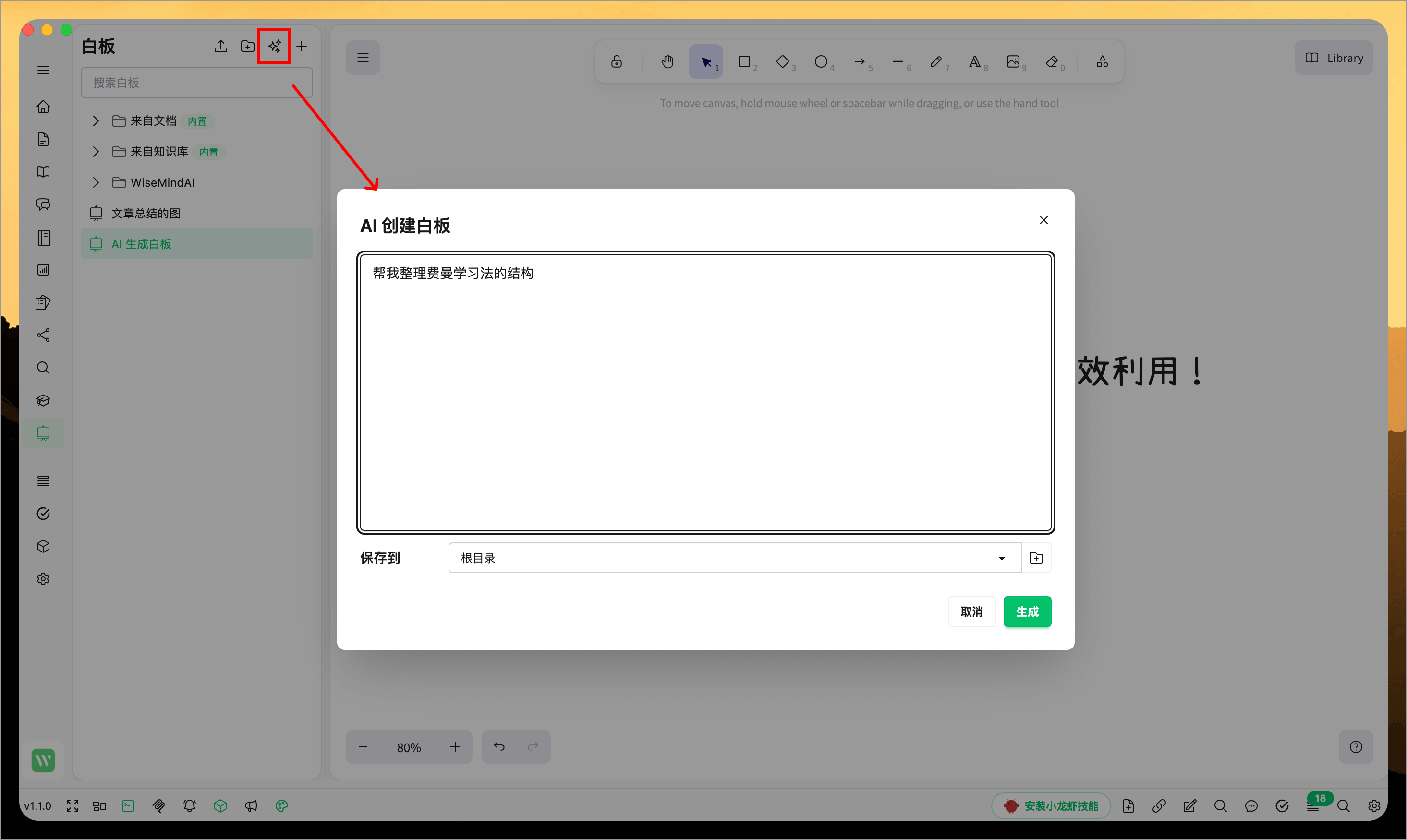
This feature is suitable for quickly getting a first draft of your structure without needing to draw everything from zero yourself.
Create a Board from Documents or Knowledge Base
The document and knowledge base pages in WiseMindAI also have whiteboard entry points.
When you are reading documents or organizing content within the knowledge base, you can directly create an associated board for that specific content. This allows you to organize your materials into structured diagrams without leaving your current workflow.
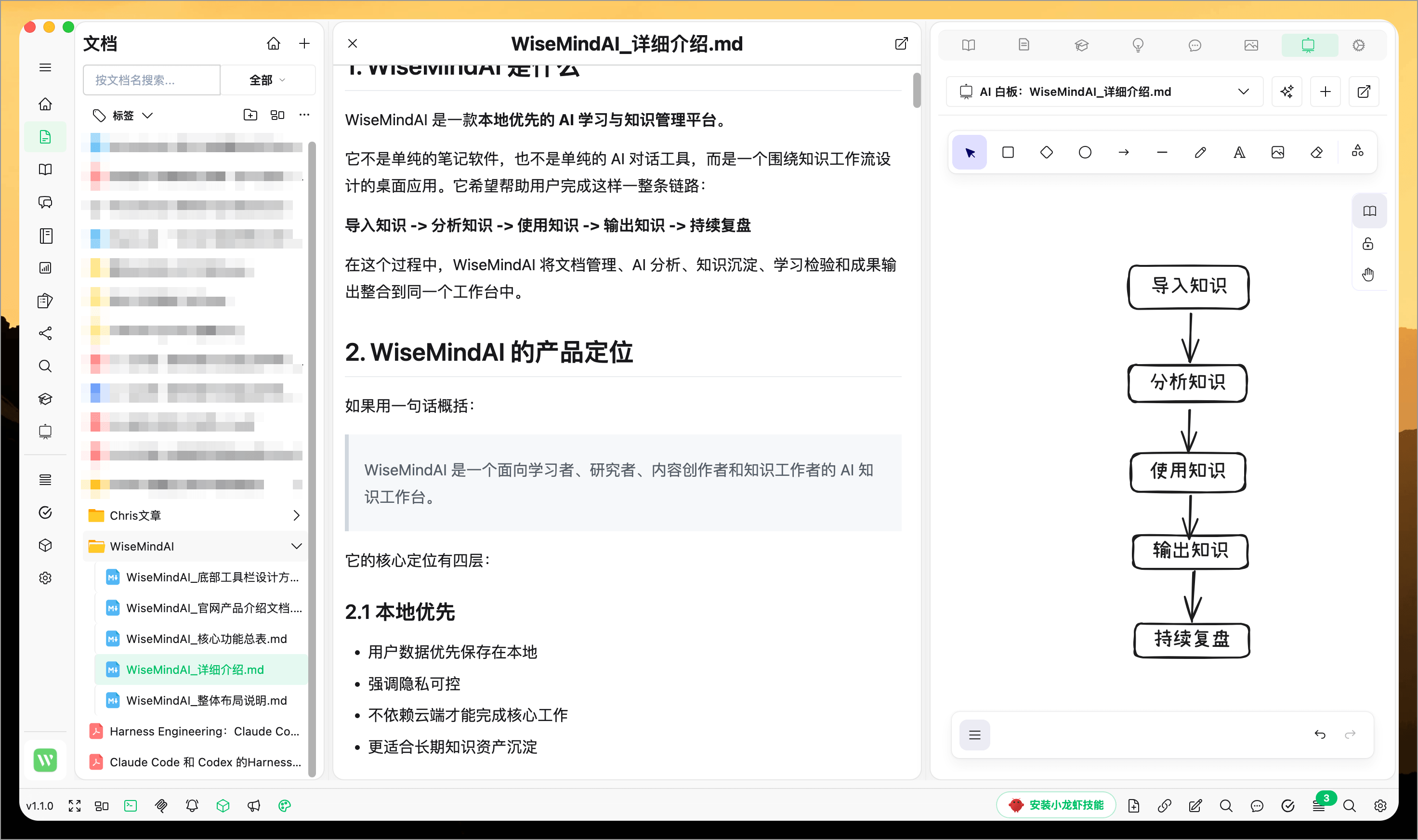
Use this feature when:
- You have finished reading a document and want to summarize key points as a structure diagram.
- You need to extract concept relationships from knowledge base content.
- You wish to convert an AI-generated summary into a visual whiteboard.
- You maintain multiple separate boards for different topics within the same knowledge base.
If there is already an associated board for your current content, you can open it directly via the entry point and continue editing.
Other Features
- Import Excalidraw files: If you have existing
.excalidrawfiles, you can import them into WiseMindAI. - Export boards: Supports exporting as images or
.excalidrawfiles.